
Appearance
Open Quickly
The Xcode-style ⌘⇧O picker. One field — fuzzy across everything you might want to jump to: open tabs, recent sessions, frequent folders, SSH hosts, agent sessions, the focused pane's commands and links, saved recipes, and the files in the current working folder.
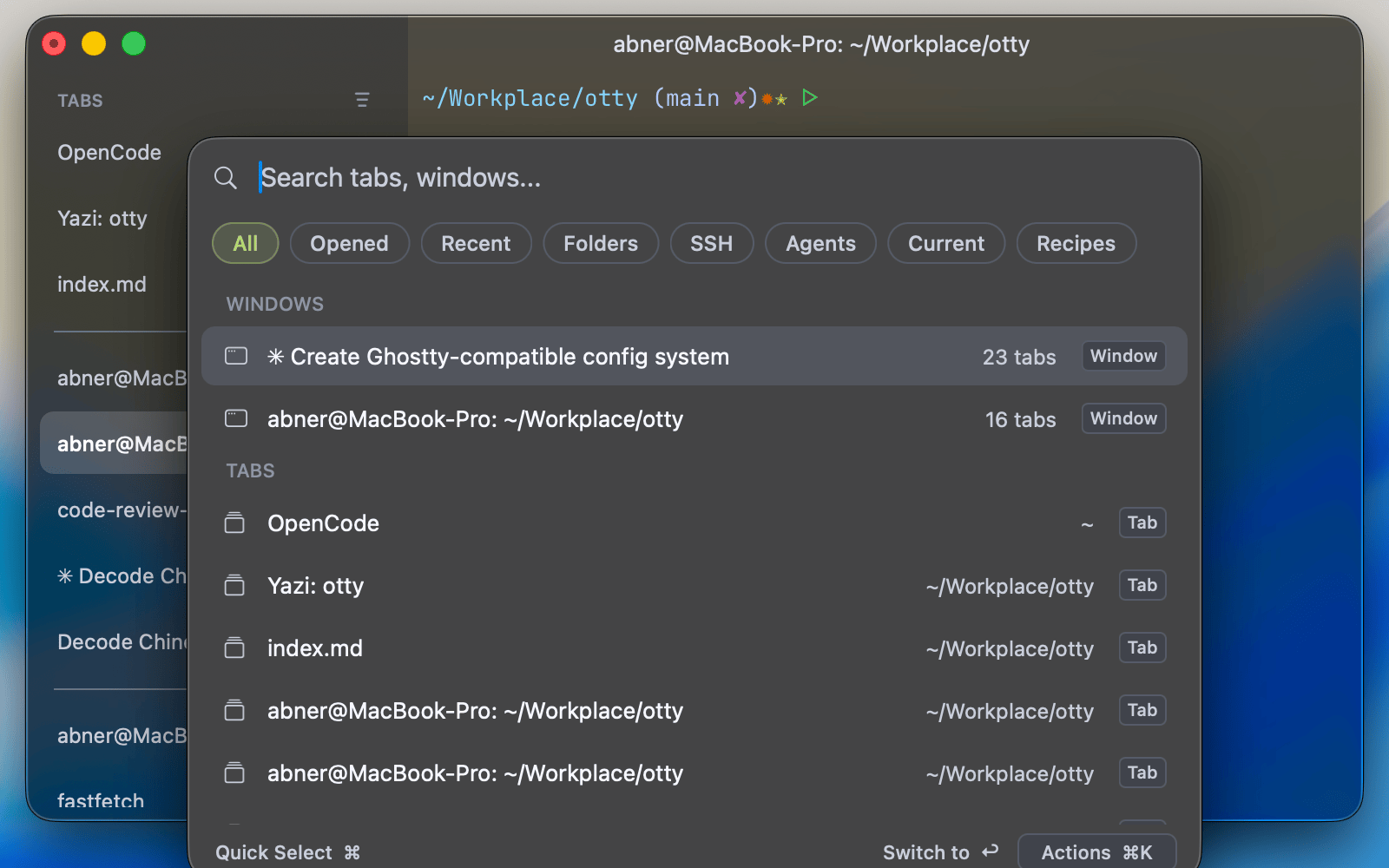
Open it
| Shortcut | Opens |
|---|---|
⌘⇧O | The full picker on the All filter — from any keyboard context (main window, settings, agent surface). |
⌘J | Jump-to — opens straight to the Current filter, scoped to the focused pane (its commands, links, and outline). |
| View ▸ Open Files Quickly | Straight to the Files filter. Also in the command palette, and bindable as open_files_quickly. |
Filters
The picker runs nine filters across the top. Each one is also a group within the All list — open it directly with its key, or cycle with Tab / ⇧Tab.
All
⌘0 — everything below, merged into a single ranked list. This is the default when you open with ⌘⇧O.
Opened
⌘W — every window, tab, and pane that's currently open. Switch to any of them without reaching for the mouse.
Recent
⌘R — recently-closed tabs and folders, from this session plus ones restored from your previous one.
Folders
⌘Z — frequently-used folders, ranked by Otty's built-in frecency database. See Frequent Folders.
SSH
⌘S — hosts parsed from your ~/.ssh/config. Press ↩ to connect in the focused pane, or ⌘K to connect in a new tab or window.
Agents
⌘G — sessions whose project contains the current directory, from every supported agent: Claude Code, Codex, OpenCode, Cursor CLI, Kimi Code, and Pi / omp. Resume one or open its transcript — see History.
Typing narrows the list by title. When the session you want isn't named after what you remember, pick Search “…” in agent conversations below the sessions — it's also in the All filter, above Files: Otty looks through what you and the agent wrote in those sessions and lists the ones that mention every word you typed, each with the line it matched. Tool calls and their output aren't searched. OpenCode and Kimi Code sessions aren't included yet.
Current
⌘J — the focused pane only; ⌘J opens the picker straight here. It surfaces:
- Commands from the shell history — live ones, plus commands restored from earlier session logs.
- URLs, files, and folders detected in the terminal output — see Files and Links.
- The outline of a focused file pane — Markdown / HTML headings, JSON / YAML / TOML keys, and diff files — see Outline.
- Agent prompts from the focused agent session.
Recipes
⌘E — workspace recipes you've saved. See Recipes.
Files
⌘P — files in the focused pane's working folder, most recently modified first. View ▸ Open Files Quickly opens the picker directly on this filter. Type to narrow by name or path; ↩ opens the highlighted file the same way ⌘-clicking its path in the terminal would, and ⌘K offers Preview, Open in Default App, Open in Otty (current pane / new tab / split), Reveal in Finder and Copy Path.
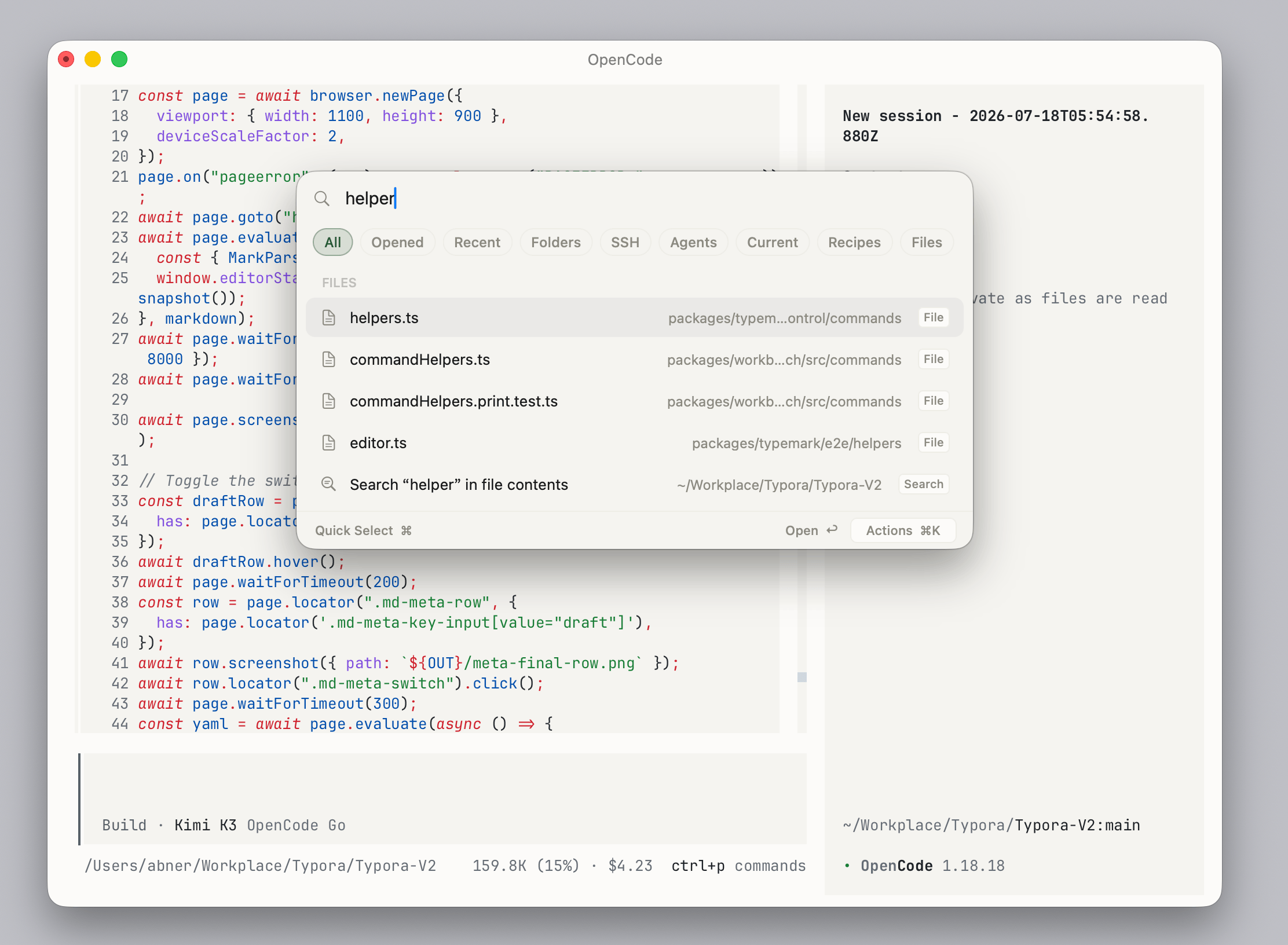
In a Git repository the list is whatever git considers part of the tree, so ignored build output never shows up. Elsewhere Otty walks the folder itself, skipping hidden files and the usual heavyweights (node_modules, target, build, …).
Files rank last in the All list — the group sits at the bottom, showing only the top few matches. Open the Files filter for the full list.
The last row of the group is not a file but an action: Search “…” in file contents. Pick it when the name didn't match and the text inside might — it opens Search in Files on the same folder, with whatever you typed.
Type a path
Type a full path — starting with / or ~, like ~/.aws/credentials — and if it exists, a Path row for it appears at the top of the list, wherever it lives on disk. ↩ opens it the same way ⌘-clicking the path in the terminal would; ⌘K offers the same actions as a file (or, for a folder, Open in New Tab plus the folder actions). The row shows in All, and in Files or Folders depending on what the path is.
Keyboard
| Key | Action |
|---|---|
↑ / ↓ | Move the selection |
PageUp / PageDown, Home / End | Jump through the list |
⌘1–⌘9 | Open the 1st–9th result directly |
↩ | Run the highlighted item's default action (open / switch to / resume / connect — depends on the item) |
⌘K | Open the Actions popover for the highlighted item |
Tab / ⇧Tab | Cycle filters |
Esc | Close |
Actions (⌘K)
Pressing ↩ runs each result's default action, but most items can do more. Press ⌘K to open the Actions popover — the same kinds of actions you'd find in the right-click menu, fuzzy-searchable. What's offered depends on the item:
| Item | Example actions |
|---|---|
| Tab | Close Tab · Move Tab to New Window · Reveal CWD in Finder · Copy CWD Path |
| Folder | Open in New Window · Split Right / Down · Change Directory Here · Reveal · Copy Path · Forget This Folder |
| SSH host | Connect · Connect in New Tab / New Window · Copy Command |
| Agent session | View Session History · Resume · Branch / Fork in New Tab · Copy Project Path · Copy Session ID |
| Command | Re-Run in Current Pane · Re-Run in New Tab · Copy Command |
| File / URL | Preview · Open in Default App · Open in Otty (current pane, new tab, split) · Change Directory Here · Reveal · Copy |
See also
- Command Palette — a different surface, for running actions, not jumping.
- Find — content-search inside a pane.
- Files and Links — the detected paths and links that feed the Current filter.
- Outline — the file-pane outline surfaced under Current.