Appearance
Input
How Otty handles the keyboard — native-macOS editing, international input, the Kitty keyboard protocol, and secure entry. Everything here is configured in the GUI, and every shortcut below is a factory default you can re-bind in Settings → Key Bindings (see Custom Keybindings).
Native-GUI input
Otty treats a shell prompt like a native macOS text field wherever it can, so the muscle memory you have from any other Mac app carries over to the terminal.
Click to focus
Click any pane to hand it the keyboard. In a split the clicked pane lights up and starts receiving input; clicking the pane that already has focus simply keeps it. Prefer focus to follow the pointer instead of the click? Turn on Mouse Over to Focus — see Cursor and Mouse.
Natural Text Editing
The standard Mac editing and navigation chords are mapped onto the terminal, so caret moves, word jumps, and line/word deletion behave like a native text field. The caret, word, and line-delete chords send the readline sequence the shell expects — so they work the same in every shell — and each is an ordinary keybinding you can re-bind or switch off under Settings → Key Bindings ▸ Text Editing.
| Shortcut | Action |
|---|---|
⌘A | Select all |
⌘C / ⌘X / ⌘V | Copy / Cut / Paste — see Copy and Paste |
⌘Z / ⌘⇧Z (⌘Y) | Undo / Redo — see below |
⌘F / ⌘G / ⌘⇧G | Find / Find Next / Find Previous |
⌘← / ⌘→ | Move to the start / end of the line |
⌥← / ⌥→ | Move one word left / right |
⌘⌫ / ⌘⌦ | Delete to the start / end of the line |
⌥⌫ / ⌥⌦ | Delete the word to the left / right |
⌘↑ / ⌘↓ | Page Up / Page Down |
⇧+arrows | Extend a selection |
The word chords (⌥← ⌥→ ⌥⌫ ⌥⌦) work whether or not Option as Alt is on. If you'd rather Option reach a TUI as a raw Alt/Meta key, unbind them under Settings → Key Bindings.
Undo / Redo
⌘Z undoes your editing at the shell prompt, and ⌘⇧Z (or ⌘Y) redoes it — just like a text field. Rapid typing coalesces into a single undo step so one ⌘Z doesn't crawl back character by character. Undo applies to the current prompt line; it is unavailable inside full-screen programs (vim, less, an editor), which manage their own history.
Cut
⌘X always copies the selection to the clipboard. If the selection is editable text on the prompt line, Otty also deletes it; on read-only text (scrollback, program output) it falls back to a plain copy. The same item lives at Edit ▸ Cut.
Input methods (IME)
Otty has full input-method support, so Chinese, Japanese, and Korean input — plus dead keys for accents like é or ü — work as they do anywhere on macOS. Composing (marked) text is shown inline at the prompt and the candidate window tracks the cursor; the committed text is sent to the shell when you confirm it.
Kitty keyboard protocol
The Kitty Keyboard Protocol (Settings → Advanced, on by default) lets Otty send modern, unambiguous key encodings (CSI u). Some TUIs need it — Helix and fish 4, for example — to tell apart keys that the legacy encoding collapses together (Tab vs ⌃I, Esc vs ⌃[, modified keys, key-release events). Programs opt in when they launch; anything that doesn't request it falls back to the classic encoding automatically. You rarely need to touch this — turn it off only if a specific program misbehaves with modern key reports.
modifyOtherKeys
Otty also speaks modifyOtherKeys, the older sibling of the Kitty protocol (xterm's XTMODKEYS). Some programs — notably Emacs and fish 4 — reach for it instead of the Kitty protocol to disambiguate modified keys the classic encoding would otherwise flatten, so combinations like ⌃;, ⌃., ⌃/ and ⌃Space arrive as distinct keys. Like the Kitty protocol it's fully automatic: a program turns it on when it starts and Otty snaps back to the classic encodings the moment the program exits — or crashes without cleaning up — so it never leaks into your shell and breaks ⌃C. There's nothing to configure.
Keyboard Options
A few keyboard behaviors are GUI toggles under Settings → Controls:
| Setting | Default | What it does |
|---|---|---|
| Option as Alt | Off | Treat the macOS Option key as Alt/Meta so terminal apps see Esc-prefixed sequences (Emacs, Vim word-jumps, readline). Off keeps Option free for typing accented characters (¡, é, ©…). You can apply it to both Option keys or just the left / right one. |
| Shift+Arrow Select | On | ⇧+arrows drive a native selection instead of sending arrow escapes. Turn off to pass ⇧+arrows through to a TUI. |
One more keypad knob lives under Settings → Advanced → All Settings — search for Allow VT100 Application Keypad Mode. On (the default) it honors a program's request (DECKPAM) to put the numeric keypad into application mode, so vim / emacs / less keypad bindings work; off makes keypad keys always type literal digits.
To remap any shortcut — or bind a chord to send custom bytes — open Settings → Key Bindings; see Custom Keybindings.
Secure Keyboard Entry
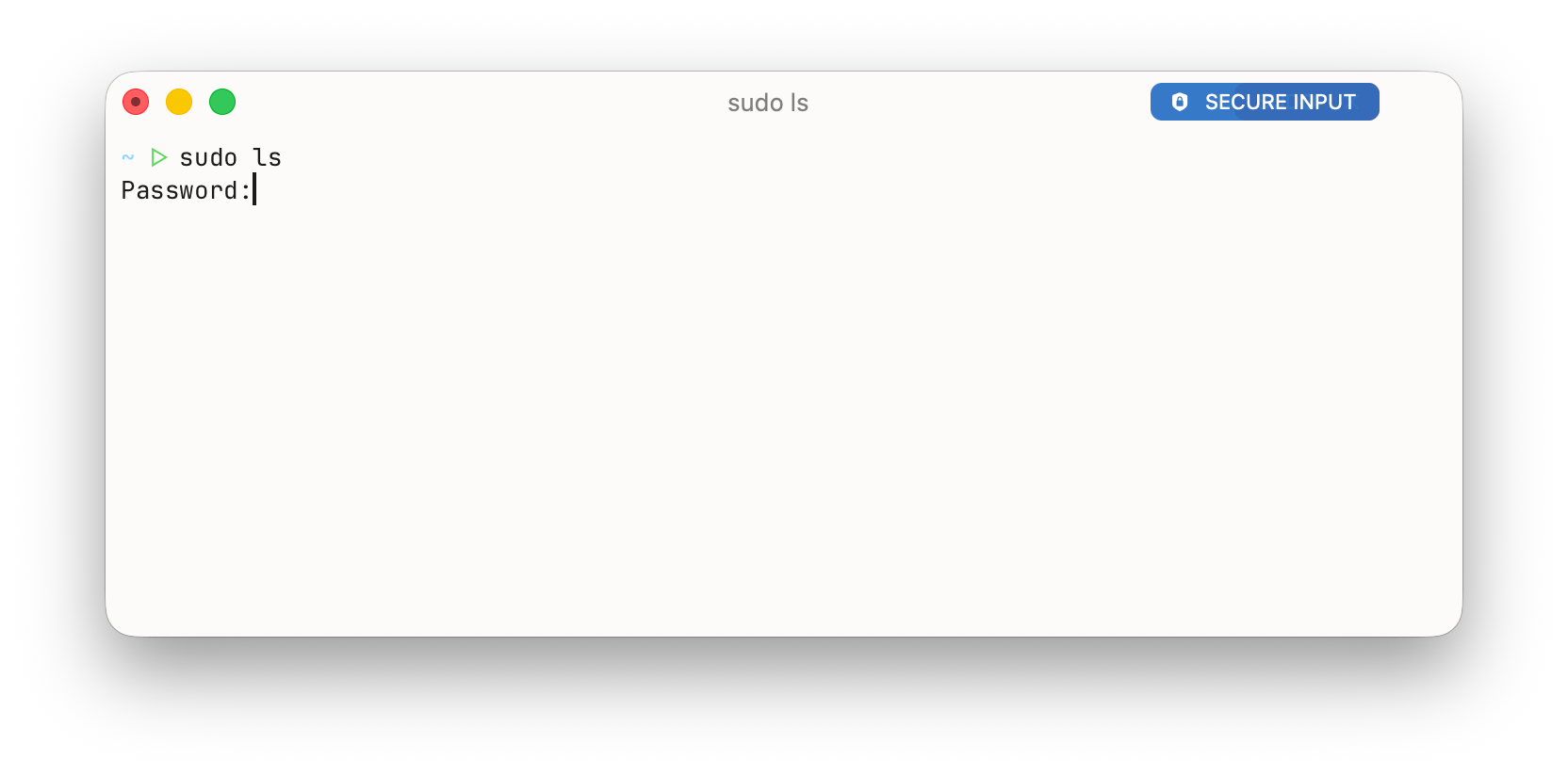
Secure Keyboard Entry is a macOS-level protection that stops other apps (keyloggers, screen-capture helpers, scripting tools) from observing your keystrokes while Otty has focus.
- Automatic — with Auto Secure Input on (Settings → Controls, on by default), Otty enables it the moment the active session asks for a hidden password (
sudo,ssh,loginprompts) and releases it afterward. - Manual — toggle it yourself any time from Edit ▸ Secure Keyboard Entry.
While it's active, a title-bar pill shows the state so you always know it's on. Hide the pill by turning off Secure Input Indicator (Settings → Controls).
Composer
The Composer is a roomy multi-line editor that slides up from the bottom of the focused pane — handy for building a long command, a here-doc, or a multi-line prompt before you run it. Open it from Edit ▸ Composer (⌘⇧E), the Command Palette, or the terminal's right-click menu. See Composer for the full guide — pin, float panel, and rich paste.
| Key | Action |
|---|---|
⌘↵ | Send — paste the draft into the terminal and close the Composer |
⇧↵ | Insert a newline (keep editing) |
⎋ | Cancel — close without sending; your draft is kept for next time |
⌘⇧E | Toggle — press again while it's open to close it |
The Composer matches your terminal theme and can be popped out into a floating window that stays on top while you work elsewhere.
Prompt Queue
The Prompt Queue lines up several commands and fires them one at a time, each one waiting until the previous command finishes and a fresh prompt is ready — no need to babysit a long batch. Open it from Edit ▸ Prompt Queue… (⌘⇧M) or the Command Palette.
A small card appears at the bottom of the pane. Type a line and press ↵ to add it to the queue; use the arrow button on a row to send it right now, or the trash button to drop it. Otty only dispatches the next item when the shell is back at an idle, empty prompt, so it won't clobber anything you're mid-typing. Full-screen TUIs pause the queue; for agent panes (Claude and friends) it waits for the agent to go idle between turns instead.
Drafting something longer? The Composer can hand its lines straight to the Prompt Queue.
Native macOS features
Services
When text is selected in a pane, Otty offers it to any Service that accepts text, so you can pipe a selection into another app from the Services menu.
Insert from device
Edit ▸ Insert from gathers File Path…, Screenshot, and Import from iPhone or iPad. The last one uses Continuity Camera: take a photo, scan a document, or add a sketch on a nearby iPhone/iPad and Otty saves it to a temp file and drops the (shell-escaped) path into the prompt, ready to use.
See also
- Copy and Paste — clipboard, paste protection, and the Paste-as variants.
- Selection — native text selection and the Shift+Arrow / Copy-on-Select options.
- Cursor and Mouse — click-to-focus, mouse reporting, and pointer behavior.
- Custom Keybindings — remap any shortcut or bind custom key sequences.
- Vi Mode — keyboard-driven navigation and selection.