
Appearance
Themes
How to pick, switch, and write themes.
Switching themes
You could switch theme from
- Main menu → View → Themes
- Command palette → input Theme and press enter or filter by theme name directly
- Open Settings Panel → Appearance → Themes
- Using otty cli
otty theme listandotty config set theme <name> - Edit config toml directly, adding a
theme = <theme>row.
Themes from the CLI
List installed themes and choose a name from the output:
bash
otty theme list
otty theme list --color dark
otty config set theme nord
otty config set theme-dark dracula
theme sets the primary theme; theme-dark sets the separate dark-mode slot. config set rejects an unknown theme name instead of saving a value the app cannot use. Use otty config schema --json to inspect setting types, defaults and allowed values.
For a launcher such as Raycast or a coding agent, request JSON:
bash
otty theme list --json
otty theme list --color light --json | jq '.data[] | {name, colors}'
Each entry in data has a name, variant, source, and resolved colors. The colors are background, foreground, surface, accent, secondary, and tertiary, all #rrggbb strings. Use them to draw preview cards or color swatches without parsing theme files; built-in themes include colors too. These are preview colors, not the complete terminal ANSI palette.
See the CLI reference for configuration and theme commands.
Auto light / dark switching
Otty can follow the OS appearance and swap themes when the system flips between light and dark mode. It's on by default, and the switch is applied live — no restart.
Two theme slots drive it:
theme— used in light mode (default:Paper)theme-dark— used in dark mode (default:Nord)
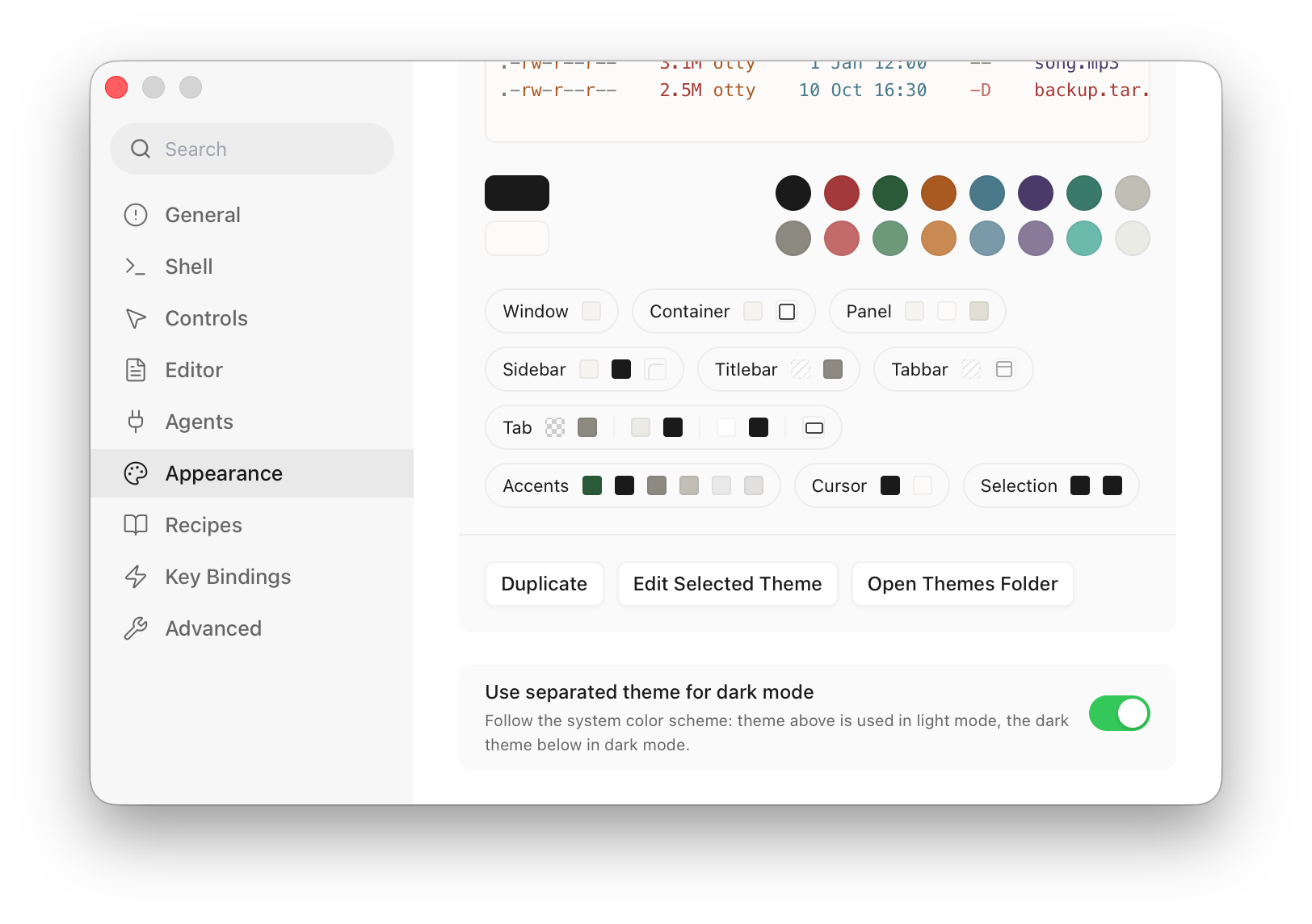
You can enable / disable it by opening Settings Panel → Appearance → Themes:
- The main theme picker sets your light theme.
- Turn on "Use separated theme for dark mode" and a Dark Theme picker appears below for the dark slot.
With the toggle off, theme is used no matter what the system is doing.
Custom themes
The easiest way to config a theme is in Settings Panel → Appearance → Themes. Select a theme and edit its colors, paddings or borders.
Adding Themes
A theme is a single file — TOML inside, with an .ottytheme extension. Besides editing in the Settings Panel, you can drop one in by hand:
Put an
.ottythemefile in your themes folder:- macOS / Linux —
~/.config/otty/themes/ - Windows —
%APPDATA%\otty\themes\
This is the same folder Otty writes to when you tweak colors in Settings Panel → Appearance → Themes.
- macOS / Linux —
The file name is the theme's slug. It's the display name lowercased, with anything that isn't a letter or number turned into
-— so a theme namedMy Cool Themelives inmy-cool-theme.ottytheme. Put the human-readable name in[meta] name.New files show up the next time you open the theme list (relaunch Otty if you don't see it). No build step.
Activate it like any built-in — theme = my-cool-theme in your config, or pick it from any switcher listed above.
To start from an existing theme without restating every color, use inherits (see Theme Format → Inheritance).
Importing themes
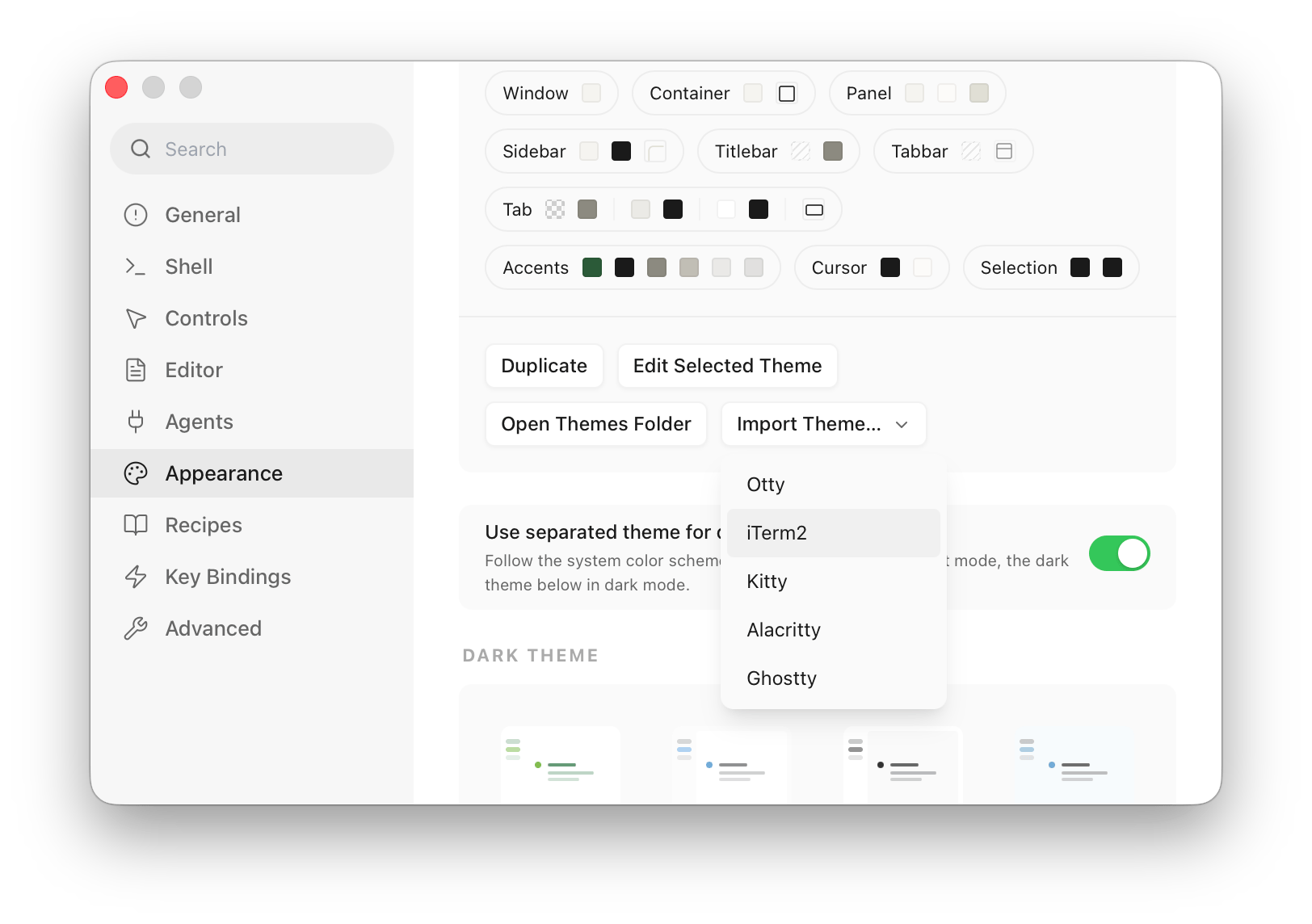
Already have a theme file? Import it directly — Otty drops it in your themes folder (converting from other terminals' formats when needed). Supported formats:
- Otty
.ottytheme— an Otty theme file (e.g. shared by a friend or pulled from themes.otty.sh). Imported verbatim, so chrome styling ([panel],[titlebar], …) is preserved. - iTerm2
.itermcolors— the de-facto interchange format, so this covers nearly every scheme published online (e.g. iTerm2-Color-Schemes). - Kitty color
.conf(foreground #fff,color0 #000) - Alacritty
[colors.*].toml - Ghostty theme files (
foreground = #fff,palette = 0=#000)
From the Settings Panel → Appearance → Themes, open the Import Theme dropdown and pick which kind of file you have (Otty / iTerm2 / Kitty / Alacritty / Ghostty). The file dialog opens at that terminal's theme folder when there is one. Otty shows a preview (name, light/dark, swatches); tick Switch to it now to activate it immediately. Light/dark mode is detected automatically from the background.
Double-click an .ottytheme file in Finder (or run open Nord.ottytheme). Otty asks whether to Import it (just add it to your themes) or Import & Apply (add it and switch to it right away).
From the CLI — the format is auto-detected, and you can pass a local path or an http(s) URL. For an Otty .ottytheme or an .itermcolors file you can skip the theme subcommand and just write otty import <file>:
sh
otty import ~/Downloads/Nord.ottytheme                       # add to your themes (no `theme` needed)
otty import ~/Downloads/Nord.ottytheme --activate            # add and switch to it
otty theme import ~/Downloads/Dracula.itermcolors            # explicit form — any supported format
otty theme import https://themes.otty.sh/nord.toml           # import straight from the web
otty theme import https://themes.otty.sh/nord.toml --overwrite # update a theme you already have
The imported theme lands at ~/.config/otty/themes/<slug>.ottytheme like any other custom theme, so you can open and tweak it afterwards. If a file with that slug already exists, Otty appends -1, -2, … instead of overwriting — pass --overwrite (CLI) to update it in place.
Theme TOML
Unlike the main config, theme files are real TOML. Only [terminal] is required; everything else is optional.
toml
[meta]
name        = "Midnight"   # display name (the slug comes from the file name)
mode        = "dark"       # dark | light — drives auto light/dark switching
author      = "you"        # optional
description = "..."        # optional

[terminal]                 # the only required section
foreground = "#C0CAF5"
background = "#1A1B26"      # use "none" for a transparent terminal background
palette = [
    "#15161E", "#F7768E", "#9ECE6A", "#E0AF68",   # 0-3:  black red green yellow
    "#7AA2F7", "#BB9AF7", "#7DCFFF", "#A9B1D6",   # 4-7:  blue magenta cyan white
    "#414868", "#FF899D", "#9FE044", "#FABA4A",   # 8-11: bright black red green yellow
    "#8DB0FF", "#C7A9FF", "#A4DAFF", "#C0CAF5",   # 12-15: bright blue magenta cyan white
]
cursor               = "#C0CAF5"   # optional, falls back to foreground
selection-background = "#283457"   # optional

# ---- everything below is optional ----

[token]                 # typography & shape
accent             = "#7AA2F7"                     # focus / selection accent
font-mono          = ["JetBrains Mono", "Menlo"]   # terminal grid font — name or fallback stack
font-ui            = ["-apple-system", "SF Pro"]   # window-chrome font
font-size          = 13                            # terminal font size (pt)
adjust-cell-height = "20%"                          # line height: "Npx" | "N" | "N%" | "0" (natural)

[container]             # the rounded card the terminal grid sits in
radius  = 15
shadow  = "0 1.5px 6px rgba(0,0,0,0.18)"
border  = "1px solid #2A2E45"
padding = [8, 16, 8, 16]   # inner grid gutter — scalar, or [top, right, bottom, left]
margin  = [0, 16, 16, 0]   # inset the card from the window edges
[terminal] alone is a complete theme. [token] carries typography and shape (some keys touch the grid: font, size, line height); [container] styles the card the grid sits in. The remaining sections style the rest of the window frame: [panel], [sidebar], [titlebar], [tab] (with [tab.active] / [tab.hover]), [window] (e.g. material = "glass"), and per-shape [cursor]. [mac] and [windows] name the backdrop per platform when one blur doesn't suit both — see Theme Format.
See the Theme Format reference for the full schema, every key, and inheritance.
See also
- Fonts — paired with themes.
- Theme Format — full TOML schema.