
Appearance
Skills
Your coding agent can already read your files and run commands. Skills teach it one more thing: how to drive Otty — wait for something to finish, say something in another terminal, put a file on screen.
📸 TL;DR
- Install from Settings (
⌘,) → Agents → Skills → Copy, then paste into your agent. It writes the file itself. - Then just talk to it:
/wait for the build in the other tab,/tell deploy staging,/open src/main.rs in a split. /ottyis the four-in-one: it lays out panes, starts work — or a second agent — in them, and waits. See Orchestrating Agents.
Why you'd want them
An agent working on its own is blind to the rest of your workspace. It can start a long build, but not notice when it ends. It can tell you a file is worth reading, but not put it in front of you. If you have a second agent running in another tab, neither knows the other exists.
Each skill closes one of those gaps:
| Skill | What you can now ask for |
|---|---|
/wait | "Finish the migration, then wait for the test run in the other tab and tell me what broke." |
/tell | "When the deploy is green, tell the agent in tab 2 to start the smoke tests." |
/open | "Find where this error comes from and open the file next to me." |
/otty | "Run the tests in a split while you keep going, and get a second agent on the review." |
They compose, which is where they earn their place: wait for that, then tell this one to start is a sentence your agent can now carry out on its own instead of stopping to ask you to do it. /otty is that composition made explicit — install it instead of the other three if what you want is an agent that spreads work across the window on its own.
Install one
- Open Settings (
⌘,) → Agents, and scroll to the Skills card at the bottom. - Click Copy on the skill you want. A dialog opens first — see naming below.
- Paste into your coding agent and send.
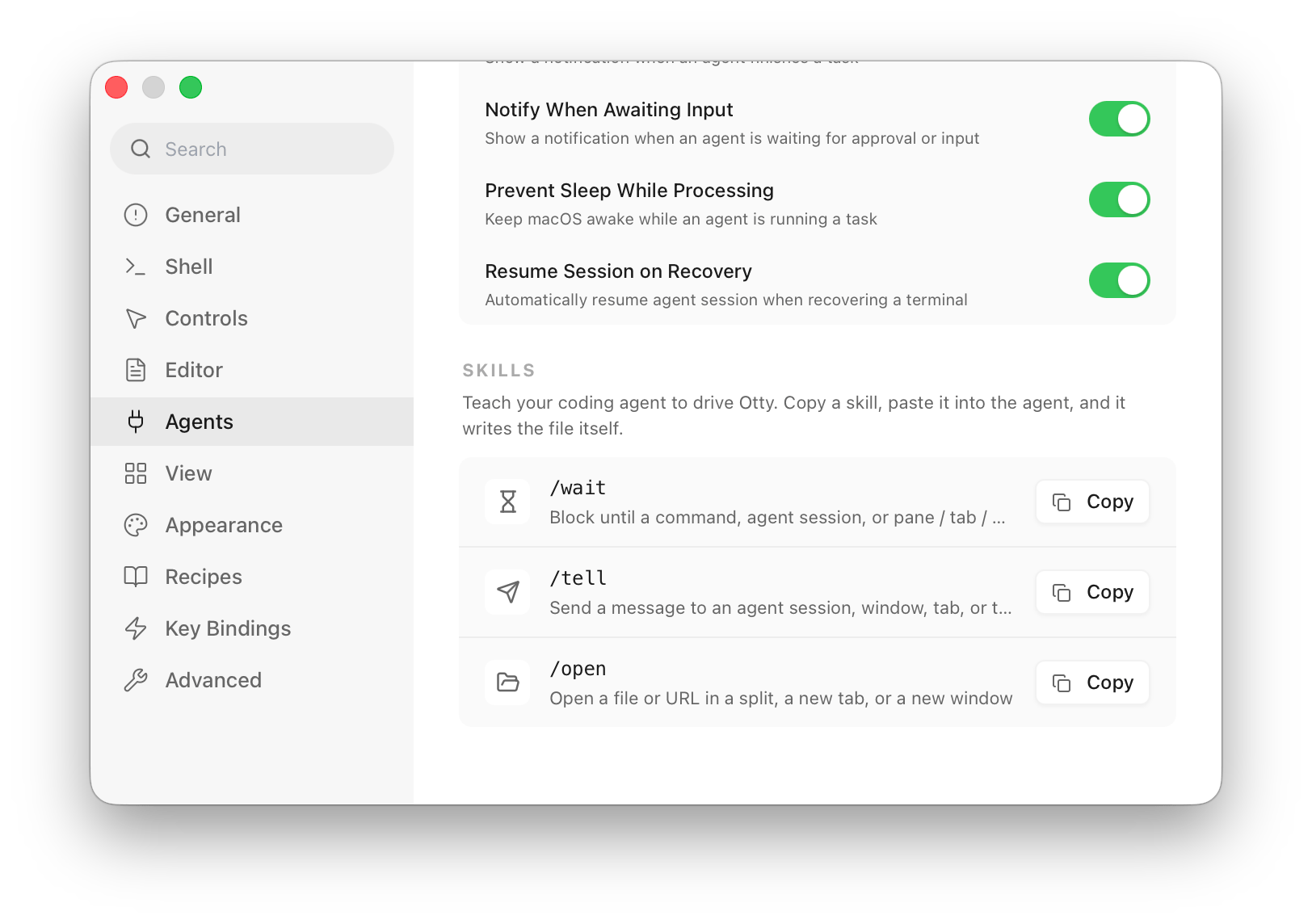
What you paste is an installer prompt, not a file. The agent reads it and writes the skill wherever that agent keeps skills, which is why this works for Claude Code, Codex, OpenCode and the rest without Otty having to know each one's layout. Nothing is written to disk behind your back, and you can read the whole thing before you send it.
The skill is available the moment the agent confirms it. Some agents need the session restarted before a new slash command shows up in their menu — starting a fresh one is always enough.
Naming it
The dialog asks for a name before it copies, because the name is what you will type. If you already have a wait skill from somewhere else, rename this one to otty-wait and nothing collides. The name flows into the file, the install path and the slash command together, so there is only ever one thing to remember.
The dialog also shows what to type once it is installed, using the name you chose — so an agent installed as otty-wait is documented as /otty-wait.
/wait — block until something finishes
Give it a thing to wait for and it returns when that thing is done.
/wait 226dd916-67cb-443c-ae87-04d5b6761a9b   # an agent session id
/wait p_19f0bfe5ce9_1a                       # a pane
/wait for the build in the other tab         # described, not addressed
The third form is the one to remember: you don't have to look an id up. The agent lists what is running, works out which one you meant, and waits on that.
Idle means different things in different panes, and the skill knows the difference — an agent pane is finished when the agent reports idle, a shell pane when the command has exited and the prompt is back. Underneath it is otty pane wait and otty watch, so it blocks properly rather than polling and guessing.
/tell — say something in another terminal
Send a line of text to a session, a pane, a tab, or a window.
/tell 226dd916-67cb… run the test suite   # to an agent session
/tell p_19f0bfe5ce9_1a git pull           # to one pane
/tell deploy staging                      # to the active pane
Addressed to an agent session, it lands in that agent's conversation — which is how one agent hands work to another. Addressed to a shell pane, it is typed at the prompt exactly as if you had typed it.
/tell needs permission to type
Typing into a pane is off by default, since it is the one skill that can make something happen in a terminal you were not looking at. The /tell dialog carries the switch that turns it on; installed without it, every send is refused on the first try. Panes in an SSH session or in Read Only mode refuse input regardless.
/open — put something on screen
/open src/main.rs in a split         # beside the current pane
/open https://docs.otty.sh in a new tab
/open ~/notes.md                     # a new tab, the default
Files open in the file pane with syntax highlighting; URLs open in the built-in browser. Saying in a split or in a new window is enough — you do not have to name a placement the way the CLI does.
/otty — spread work across the window
/otty run the test suite in a split while you keep going
/otty get a second agent reviewing the diff
/otty build and lint in parallel, then report
The other three are one verb each; this one is the workspace. It opens panes, runs commands in them and reads back exit codes or output, starts a second coding agent and hands it a task, waits for all of it, and closes what it opened. It needs the same Allow agents to type into panes switch /tell does — the dialog carries it.
Orchestrating Agents walks through what to ask for and where the limits are.
See also
- Orchestrating Agents — the guide to
/otty, with the multi-agent recipes. - Setup — connecting an agent, and the usage readout.
- Monitor Tasks — badges and the dashboard for several agents at once.
- Using the CLI in your Shell — the commands these skills are built on, for when you want to script it yourself.