Appearance
Autocomplete / Inline Suggest
Inline ghost-text and a candidate panel — driven by a Fig-compatible spec database with 700+ CLI tools shipped and Otty's on-device learning.
Trigger / Config
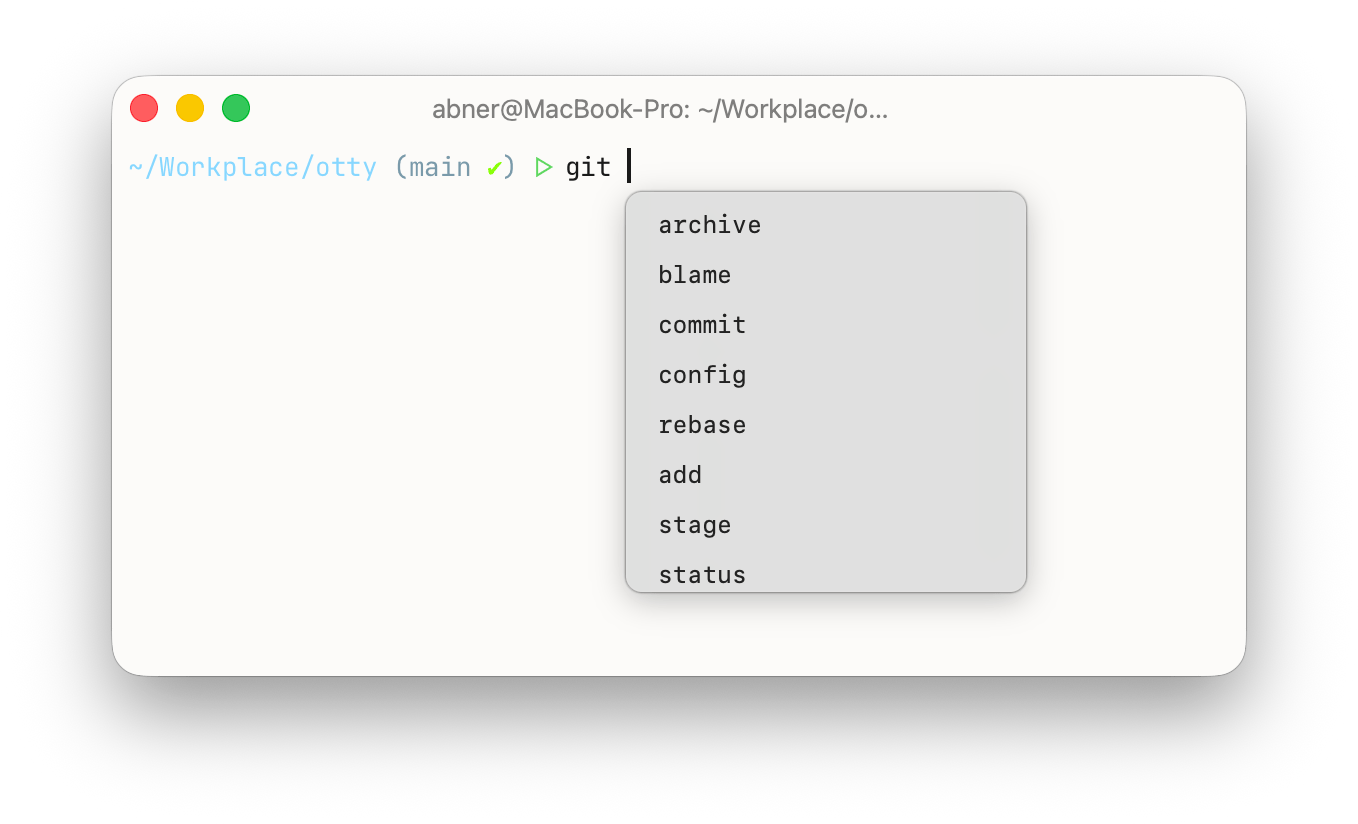
Otty watches the line you're typing at a shell prompt and offers suggestions on its own — there's no key to summon it. A moment after you stop typing, the most likely continuation appears as dim ghost text; when several completions are plausible, a candidate panel can open beneath the cursor instead.
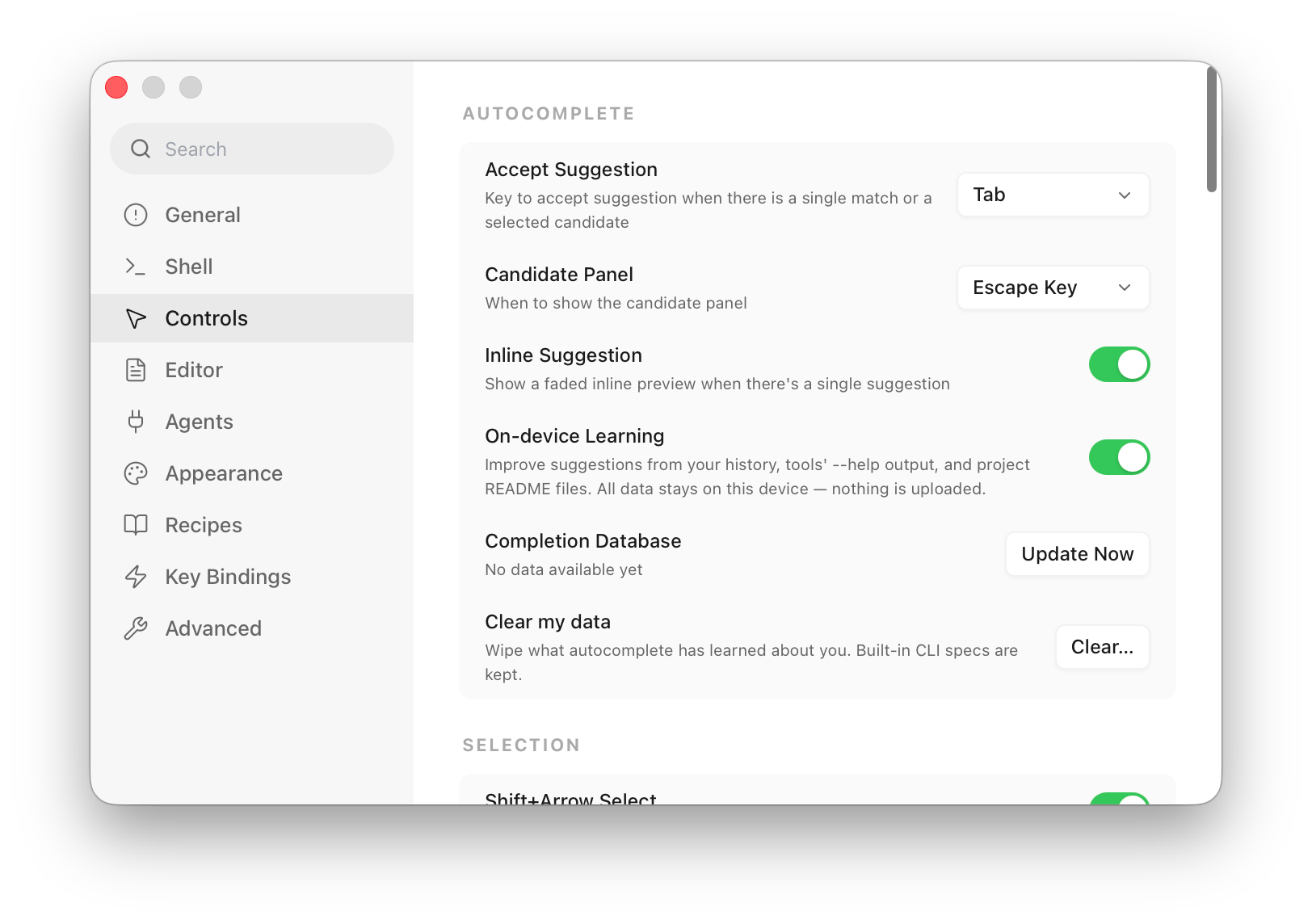
Six autocomplete-* keys tune the behavior (full details in the Configuration Reference):
| Key | Default | What it does |
|---|---|---|
autocomplete-shortcut | tab | Key that accepts the current suggestion: tab, tab+right-arrow, ctrl+space, or disable. |
autocomplete-show-candidates | escape | How the panel opens: disable, auto (whenever there are ≥ 2 matches), escape, or option-escape (Option+Esc / F5). |
autocomplete-inline-suggestion | true | Whether to draw the faded ghost text at all. |
autocomplete-on-device-learning | true | Master privacy gate for local learning (history, --help probes, README scan). Everything stays on your machine. |
autocomplete-history-ignore | (none) | Glob patterns for commands that are never recorded, e.g. ssh *, export *TOKEN*. |
autocomplete-description-language | system | Language of the descriptions shown next to candidates: system, english, or chinese. |
Candidate Panels and Ghost Text
Two surfaces share one suggestion engine:
Ghost text is a dim continuation drawn after your cursor when there's a single clear winner. Accept it with Tab (or → when autocomplete-shortcut = tab+right-arrow). Keep typing to refine it, Backspace to clear it, or Esc to dismiss it without leaving the line.
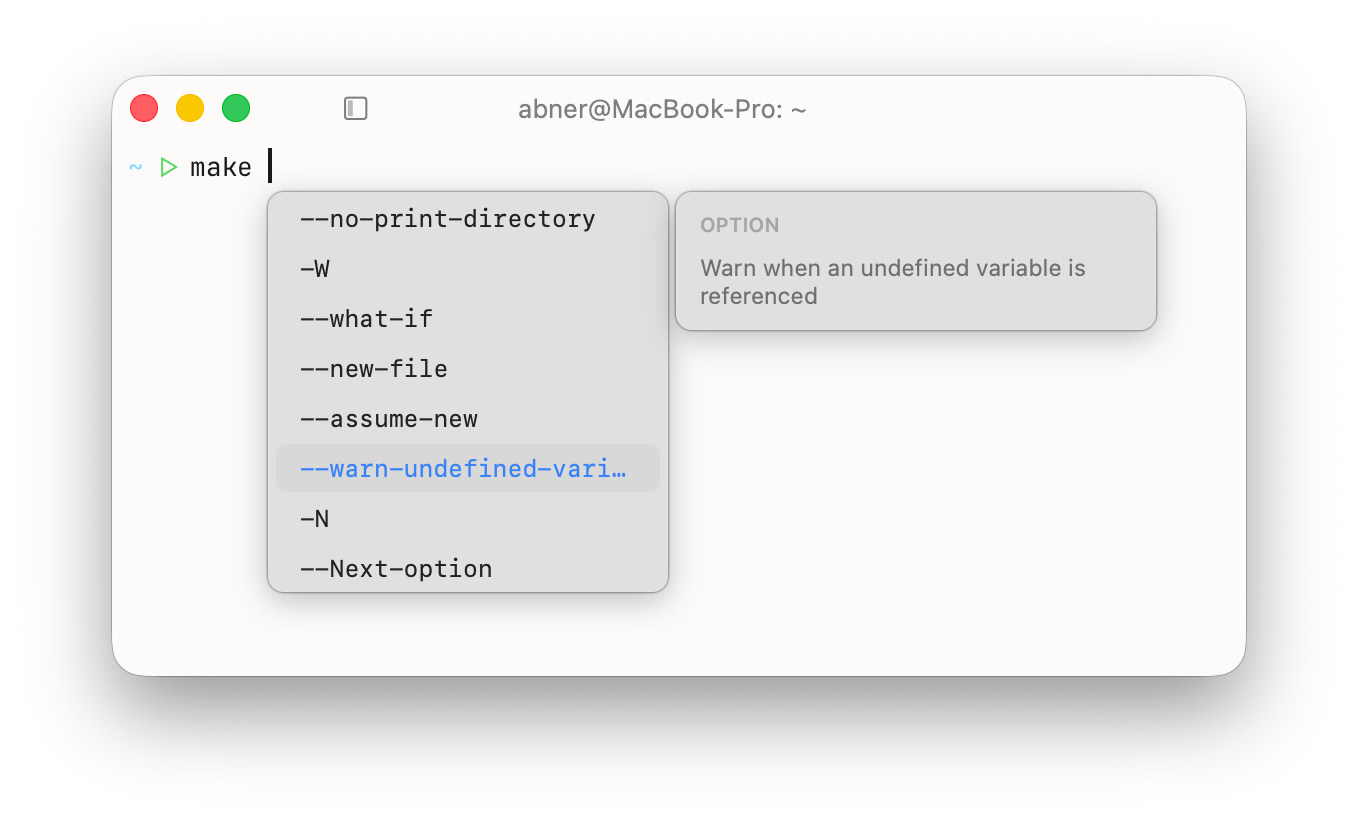
The candidate panel is a dropdown beneath the cursor for when more than one completion fits. Move with ↑/↓, accept with Return or Tab, dismiss with Esc, or click a row. Up to eight rows are visible, and a side column shows the selected item's description. Whether it opens automatically or on demand is governed by autocomplete-show-candidates.
Every row carries a kind icon so you can see where a suggestion came from at a glance — subcommand, option/flag, argument, file, folder, alias, snippet, learned command, README command, or a "did you mean…" fix.
Inline Suggest Source
Data from Fig-compatible spec
Otty bundles Fig autocomplete specs — declarative files describing CLI grammars: each command's subcommands, flags, and the arguments they take. The bundle covers 715 commands at last count (git, npm, kubectl, docker, aws, …) and ships as a single database inside the app. Refresh it from Settings → Controls → Autocomplete with the Update Now button on the Completion Database row; there is no automatic background download, and anything you've taught Otty locally is never overwritten by an update.
Recent Used
Beyond the static specs, Otty learns from what you actually run. Each command you execute is tokenized and recorded locally, then ranked by frecency — a blend of how often and how recently you've used it, with a strong boost for the current session. So git checkout surfaces the branches you switch to most, and a bare prompt offers the commands you reach for in this folder.
It is careful with secrets: values that follow flags like --password / --token / --api-key are never stored, commands matching your autocomplete-history-ignore globs are skipped entirely, and a command that exits 127 (not found) — or an obviously mistyped --flag — is pruned back out of history. Turn the whole thing off with autocomplete-on-device-learning = false.
Auto correction
When a command fails at the prompt, Otty reads the error and offers the fix as ghost text on the next line — a thefuck-style "did you mean…". It recognizes the correction output of common tools (git, npm, cargo, pip, brew, rustup, and the shell's command-not-found handler), pulling out the suggested command or edit-distance match on the offending token. Accept it like any other suggestion, or just start typing to ignore it.
Per-folder scripts
otty learn pins a command to the folder you're in. Run, inside a project directory:
sh
otty learn 'npm run deploy:staging'
otty learn './scripts/release.sh --dry-run'
The command is stored against the current directory and offered first whenever you return to that folder — handy for the long, project-specific invocations you'd otherwise dig out of history. Repeating otty learn on the same command bumps its rank. (Otty does not auto-scan package.json, Makefile, or justfile; you register exactly the commands you want.)
Otty also reads fenced code blocks from a project's README and offers those commands in the same folder, so well-documented repos get useful suggestions with no setup.
Add new binaries into autocomplete DB
Got a tool with no bundled spec? Teach Otty from its --help:
sh
otty learn ripgrepFor a bare binary on your $PATH, otty learn runs <binary> --help (falling back to -h or a help subcommand), parses the options and subcommands it finds, and writes a spec into your local completion database. Specs you add this way are tagged separately and survive app updates — a refresh of the bundled specs never clobbers them.
Disable Autocomplete / Inline Suggest
Open Settings → Controls → Autocomplete and turn off as much or as little as you like:
- Hide the ghost text — switch Inline Suggestion off. The faded inline continuation stops appearing.
- Close the candidate panel — set Candidate Panel to Disabled, so the
Esc/ Option+Esc shortcut no longer opens the dropdown. - Free up the accept key — set Accept Suggestion to Disabled if you'd rather no key ever accepts a suggestion.
- Stop local learning — switch On-device Learning off. Otty keeps using the bundled specs but records nothing new, runs no
--helpprobes, and reads no READMEs.
Switching off both Inline Suggestion and Candidate Panel disables the feature entirely — neither surface ever shows, and the bundled spec database is simply never consulted.
Privacy
Autocomplete runs fully offline. Suggestions come from a spec database bundled inside the app, so everything you type stays on your machine — Otty never sends your keystrokes, your command line, or your history anywhere to produce a completion, and there is no telemetry on what you complete.
On-device learning is exactly that: your command history, the --help output Otty parses for unknown tools, and the README commands it reads all live in a local database on your Mac and never leave it. The --help probes even run inside a network-denied sandbox, so a probed tool can't phone home either. Switch On-device Learning off under Settings → Controls → Autocomplete to stop all of it, or use Clear my data in the same place to wipe what's already been learned.
History is recorded with secrets in mind: values after flags like --password, --token, or --api-key are dropped before anything is stored, commands matching the History Ignore Patterns you set under Settings → Advanced are never recorded, and failed or mistyped commands are pruned back out.
Otty never runs the tools it completes for, either — it won't shell out to brew, git, or anything else just to fill the panel. Where it needs live data (branch names, Homebrew formulae, and the like) it reads what's already on disk: your local Git checkout, Homebrew's Formula/ directory, and so on. So completing brew install … never triggers a brew update or any package-index download.
The only time autocomplete touches the network is when you press Update Now on the Completion Database row under Settings → Controls → Autocomplete: Otty downloads the latest autocomplete db and uploads nothing in return. There is no automatic background sync — if you never press the button, autocomplete never connects.
See also
- Shell Integration — works alongside autocomplete (separate system).
- Configuration Reference —
autocomplete-*keys.