
Appearance
Shell Menu
Shell in the menu bar is about the pane in front of you — not the window, not the app. Four of its entries are built the moment you open them, so they answer for whatever that pane is doing right now: the line you are looking at, the ports it has open, the Git repository it is sitting in, and the agent running in it.
About This Line
A scrollback is a wall of text with no metadata on it: nothing on screen says which command printed a line, when, or how it ended. This says.
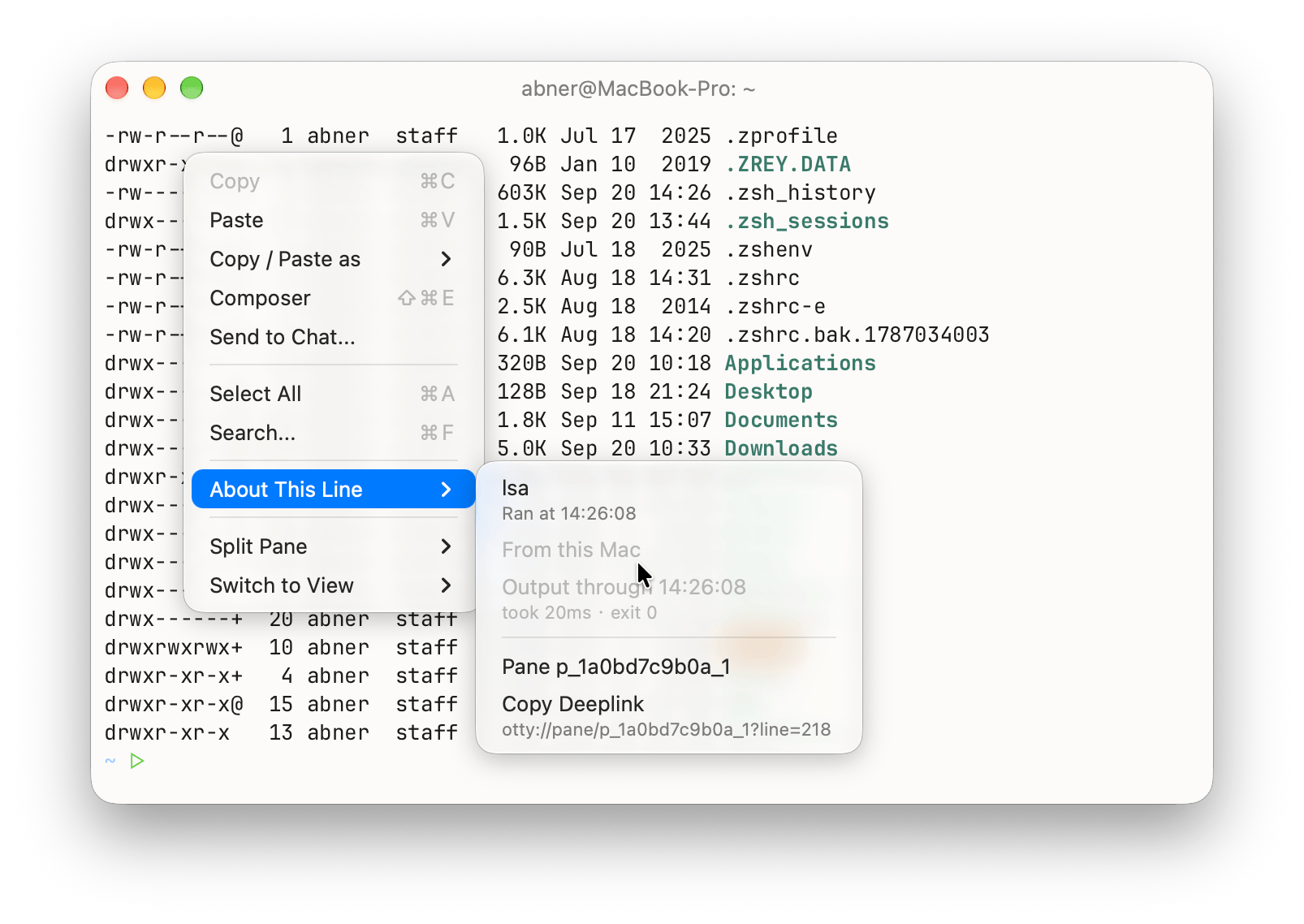
Three ways to ask, all of them showing the same submenu:
- Right-click any row in a pane and open About This Line — about the row you clicked.
- Shell → About This Line in the menu bar.
- About This Line... in the Command Palette.
The last two have no click to go on, so they read the line the caret is on — or the first line of the selection, when there is one.
What the submenu says about that line:
- The command that printed it, with the time it ran — click that row to scroll back to the command itself.
- How long its output took, and how it exited.
- The pane id — click to copy it.
- Copy Deeplink — a link back to this exact line.
Only the last two appear when the line has no command behind it — a pane without Shell Integration, or output printed before the first prompt. On the alternate screen (vim, htop, less) there is no scrollback line to point at, so the submenu drops the line and offers a link to the pane instead of naming the wrong command.
Deeplinks
A deeplink looks like this:
otty://pane/p_19e630f19fe_21?line=1204Open one — click it anywhere links are clickable, or paste it into a terminal after otty pane focus — and Otty raises that window, switches to that tab, focuses that pane, and scrolls that line into view with a brief highlight.
Paste one into a chat message, a commit note, or a bug report when the thing you're talking about is on screen but 300 lines up. A coding agent working in one of your panes can hand you one too — otty pane link prints one — so "the build failed" comes with a way to go look.
A deeplink points at a live pane, not an archive. The line number is the pane's current scrollback position, so it drifts once that pane's buffer overflows or a resize re-wraps the rows above it, and it means nothing after the pane closes. Use one while it's fresh.
Ports
Listening TCP ports are listed by terminal when you open the menu, with each row showing its port number and process name, such as 5173 node.
Ports belonging to other applications or detached servers appear under Other. Otty filters out its own listener and operating-system services from this section.
Discovery only reads process and socket information. It does not connect to these ports, send HTTP requests, or fetch page titles. Opening the command palette uses the same passive discovery.
To open a web server, choose Open in Browser from the port's submenu, or select its Open in Browser action in the command palette. This opens http://localhost:<port> in your browser. The list includes non-web services, such as debuggers and databases; choose this action only for a web server. A port bound by several tabs appears under each of them.
Windows and Linux
Windows has Shell → Listening Ports..., a dialog rather than a submenu. The Linux app does not offer this yet.
Git
What the pane's working directory is, in Git terms. The first row is the branch — with (worktree) after it when you are in a linked worktree — and under it:
| Item | What it does |
|---|---|
| Commit... | Opens a commit sheet for the changes in that repository |
| Create Branch... | Asks for a name and branches from where you are |
| Push / Pull / Fetch | Confirms, then runs it |
| Merge... / Rebase... | Pick a branch to merge or rebase onto |
| Switch to Worktree | Lists the repository's worktrees; picking one moves the pane there |
| Open in ... | Hands the repository to a Git client you have installed |
| Open Remote URL | Opens the repository's page on GitHub, GitLab, and so on |
If the pane isn't in a repository the menu says Not a Git Repository and nothing else.
For the same repository as a panel you can keep open beside the terminal, see the Details Panel.
Windows
Windows offers Git Status... and Open Repository on Remote as dialogs instead of this submenu.
Agent
Shown while a coding agent is running in the pane, named after that agent. Copy Session ID, View Session History, and — for agents that write one — Open Plan / Reveal Plan in Finder.
The rest of the menu
The entries that are not rebuilt each time live on their own pages:
| Item | See |
|---|---|
| Clear Screen, Clear Scrollback | Scroll |
| Copy Path, Reveal in Finder, Open in | Files and Links |
| Vi Mode | Vi Mode |
| Hint Mode | Hint Mode |
| Read-only | Read-only Mode |
| Notifications & Privileges | Privilege and Notifications |