
Appearance
Recipes
A recipe is a snapshot of your repeatable work, from simple text snippets, to a whole workspace including tabs, panes, working directories, and optionally the commands you ran — saved as a portable file you can re-open later or share with a teammate.
Save Layout
A layout recipe captures the shape of your workspace — every tab, the way each tab is split into panes, and each pane's working directory — with nothing about what you ran. Opening it rebuilds that structure with fresh shells.
- Arrange your tabs and splits the way you like them.
- Press
⌘Son macOS,Ctrl+Shift+Son Windows (or File → Recipe → Save…). - Give it a Name, choose a Scope, leave Content on Layout Only, and hit Save.
| Scope | What it saves |
|---|---|
| Current Tab | Just the focused tab, including its split panes |
| Current Window | Every tab in the window |
Saved recipes live in an internal database (~/.config/otty/recipes/) and show up in Settings → Recipes, the File → Recipe menu, and the command palette (Apply Recipe). To hand a recipe to someone else, export it as a standalone file with ⇧⌘S / Ctrl+Shift+Alt+S — see the .ottyrecipe file.
Portable paths
Working directories are saved as absolute paths by default. Turn on Make paths portable in the save panel to replace a prefix with a variable, so the recipe opens correctly on another machine or in another checkout:
| Variable | Resolves to |
|---|---|
| Current Folder | The directory you open the recipe from |
| Home Folder | Your home directory (~) |
| Recipe Location | The folder containing the .ottyrecipe file |
Snapshot your workspace with commands
Layout tells Otty where your panes go; turn on Include Commands and it also remembers what you ran in each one, and replays those commands when the recipe opens.
The command history comes from shell integration (OSC 133 command marks), so this only works in panes where shell integration is active. Each pane keeps its most recent commands; commands that were themselves restored from an earlier recipe are skipped, so replays don't compound.
- Press
⌘S/Ctrl+Shift+S, pick Current Tab or Current Window. - Under Content, choose Include Commands (replay on open).
- Save.
When the recipe opens, each pane runs its saved commands in order. Whether they run automatically, one keypress at a time, or not at all is governed by your replay settings.
TIP
Include Scrollback is a third Content option that also stores each pane's terminal output. It's kept only in internally-saved recipes — exported .ottyrecipe files leave scrollback out to stay small and diffable.
Custom Commands
Sometimes you don't want a whole layout — just a handful of commands you run together, dropped into whatever pane you're already in. That's the Commands scope.
- Focus the pane whose history you want to pull from.
- Press
⌘S/Ctrl+Shift+Sand pick Commands as the scope. - Otty lists the recent commands from that pane (oldest first). Tick the ones to keep — Select All toggles the whole list, and you can double-click a row to edit its text.
- Save (disabled until at least one command is ticked).
A Commands recipe creates no tabs or windows. Opening it replays the chosen commands straight into your currently focused pane, following the same replay rules as everything else. Handy for the "spin up the dev servers" or "run test + lint + build" sequences you keep retyping.
Text Snippet
A snippet is a piece of reusable text — not tied to any layout — that you expand by typing a short alias at the prompt. Think of it as an Otty-managed, cross-shell text expander for commands you type constantly.
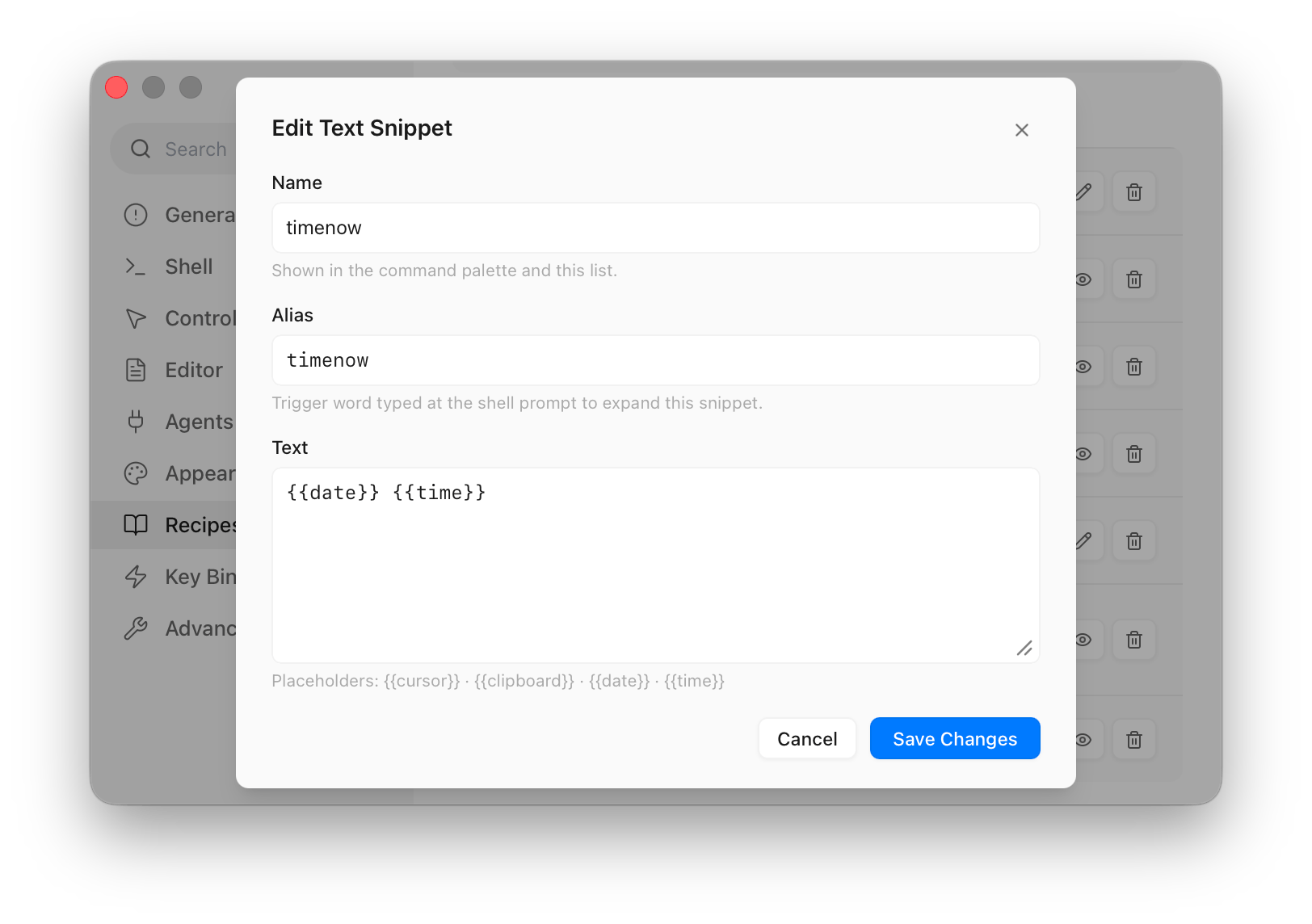
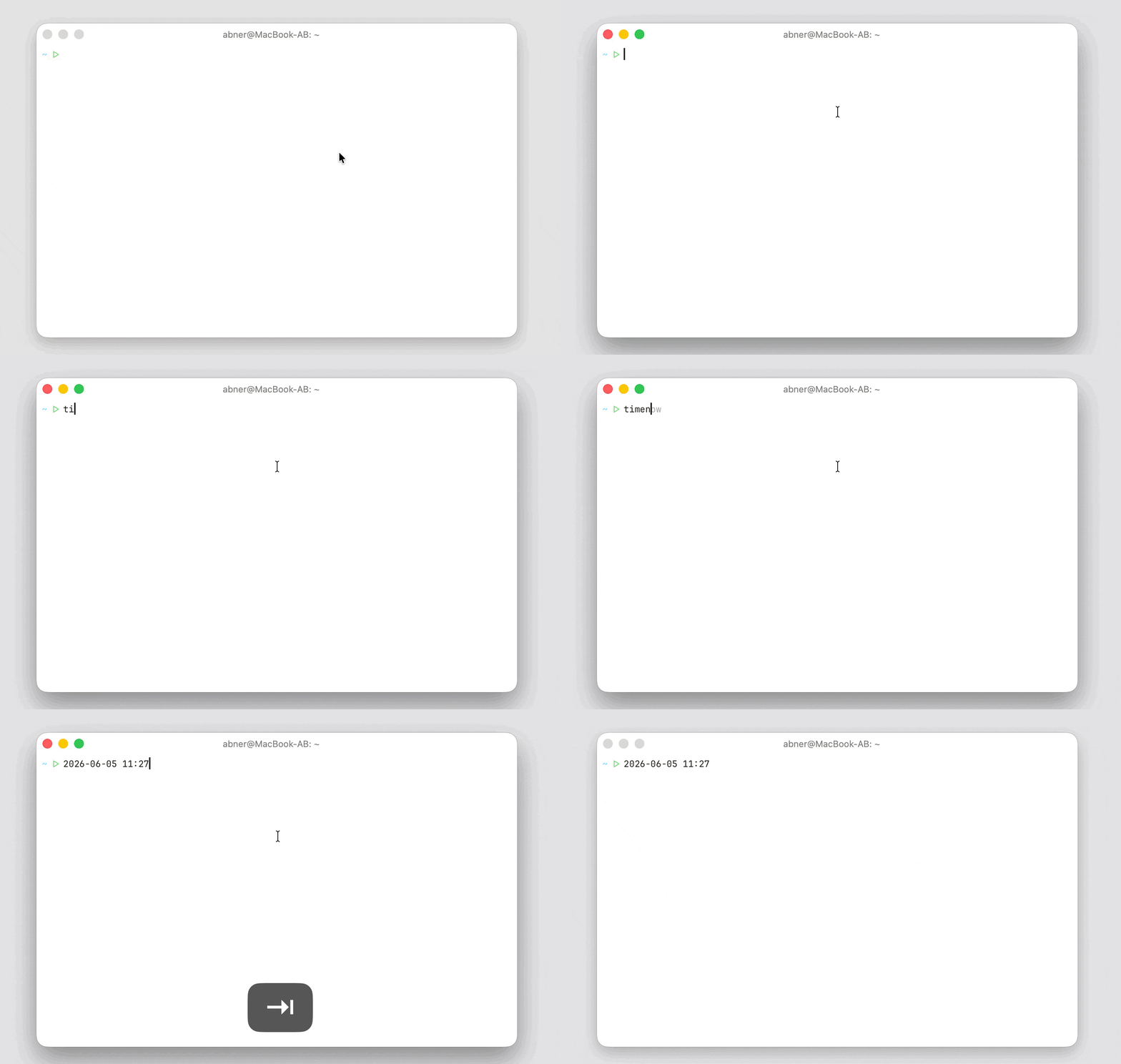
Create one in Settings → Recipes → Add → Text Snippet:
- Name — what it's called in the list.
- Alias — the trigger you type (no spaces; the shell would split on them).
- Text — the body that gets sent.
Type the alias at a shell prompt and accept it from the autocomplete panel. Otty erases what you typed and sends the expanded body. The body can contain placeholders:
| Placeholder | Expands to |
|---|---|
{{clipboard}} | The current clipboard text |
{{date}} | Today's date, YYYY-MM-DD |
{{time}} | The current time, HH:mm (24-hour) |
{{cursor}} | Where the cursor lands after sending (honored once per snippet) |
For example, a snippet aliased gco with body git checkout {{cursor}} leaves you right after git checkout ready to type a branch name.
Opening a recipe
| Way | Result |
|---|---|
Double-click a .ottyrecipe in Finder | New window populated from the recipe |
otty open foo.ottyrecipe | Same |
| File → Open Recipe in the menu bar | Picks from the internal recipe DB |
Run saved recipes from the CLI
Call a saved recipe from Raycast, a script, another terminal, or a coding agent while Otty is running:
bash
otty recipe list
otty recipe list --json
otty recipe apply "Dev workspace"
otty recipe apply "Dev workspace" --new-tab --cwd ~/work/project
Replace Dev workspace with a saved recipe's name or the ID returned by recipe list. Names are matched case-insensitively; if several recipes share a name, use the ID. JSON output puts the recipe list in data, with each recipe's scope and whether it includes commands, so a launcher can show what it will open.
By default, tab recipes open as new tabs in the frontmost window and window recipes open in a new window. Use --new-window or --new-tab to override a layout recipe's destination. Commands recipes replay into the focused pane; snippets type their text there. These two scopes do not accept either layout destination flag.
--cwd supplies the directory for Current Folder paths. Without it, Otty uses the frontmost tab's directory. Saved commands follow Saved Recipes → Command Replay, just as when applying from the command palette.
For an exported .ottyrecipe file, continue to use otty open path.ottyrecipe. See the CLI reference for the flags.
Share Recipe / The .ottyrecipe file
It's a single TOML document — readable, diffable, and safe to commit to a repo (a project-specific dev workspace), share via Slack, or version-control as your team's standard setup.
toml
[recipe]
name = "deploy-prod-debug"
version = 1
scope = "window"          # "tab" | "window" | "commands"

[[window.tabs]]
title = "API"

[[window.tabs.panes]]
cwd = "{{current_folder}}/api"
commands = ["tail -F log/prod.log"]

[[window.tabs.panes]]
cwd = "{{current_folder}}/api"
split = "right"           # relative to the previous pane
size = 0.5                # 0.0–1.0 of the parent
commands = ["make deploy"]

[[window.tabs]]
title = "Web"

[[window.tabs.panes]]
cwd = "{{current_folder}}/web"
commands = ["npm run preview"]
Exported files carry no scrollback, machine-local shortcuts, or agent sessions — just the layout, paths (with portable variables preserved), and commands.
Security for command replay
A recipe can carry commands, and opening one can run them — so Otty treats recipes you made and recipes from elsewhere differently. Both are controlled from Settings → Recipes → Command Replay, with a separate dropdown for each:
| Mode | What happens on open |
|---|---|
| Auto | All commands run automatically, in order |
| Ask Once | Commands are shown in the pane; press Enter once to run them all |
| Manually | Commands are fed in one at a time — press Enter to run each, and the next appears |
| Skip | Layout only; no commands run |
Defaults: Saved Recipes → Auto (you wrote them), Recipe Files → Ask Once (they came from somewhere else).
Untrusted files
The first time you open a .ottyrecipe file Otty hasn't seen, it shows every command the recipe will run — grouped by tab and pane — before anything executes:
- Always Trust — remember this file (by SHA-256 hash) and run by your replay setting from now on.
- Run Once — run this once by your replay setting; ask again next time.
- Cancel — open nothing.
Editing the file changes its hash, so a modified recipe counts as new and prompts again. Trusted files are recorded in ~/Library/Application Support/Otty/trusted_recipes.json (%LOCALAPPDATA%\otty\trusted_recipes.json on Windows). Recipes you saved yourself never show this dialog — they're trusted implicitly.
Commands that hand off the shell
Some commands pass your keyboard to another interactive program — ssh, tmux attach, docker exec -it, su, and the like. Otty recognizes these and, in Auto / Ask Once, stops after such a command instead of blasting the rest into a remote shell that isn't ready yet. The remaining commands wait until the inner shell signals it's back at a prompt (or for you to continue them manually), which keeps replayed input from arriving out of order. Otty deliberately errs toward pausing too often rather than too rarely.
See also
- Session Recovery — automatic restore, no manual save.
- CLI Usage — scripting
otty openwith recipes.