
Appearance
Composer
The composer is the input affordance for agent sessions — multi-line, cursor operations, undo / redo, float on top...
Quick Start
You can open composer from menubar → Edit → Composer. Or use the shortcut key command + shift + E. Then you can input, paste or edit the text content in composer like editing in a textarea, and finally send to termnial or code agent by ⌘↩.
Multi-line editing
⌘↩ sends — the draft is delivered, the composer closes, and the draft is cleared. Both ↩ and ⇧↩ insert a newline, so multi-line input is the default and you won't fire off a half-written message by hitting Return. The composer grows up to a configurable maximum height before scrolling internally.
⎋ cancels without sending; your draft is preserved, so an accidental dismissal won't lose work.
Paste is rich by default: ⌘V converts HTML, RTF, or images on the clipboard into Markdown, while ⇧⌘V pastes as plain text.
Pin
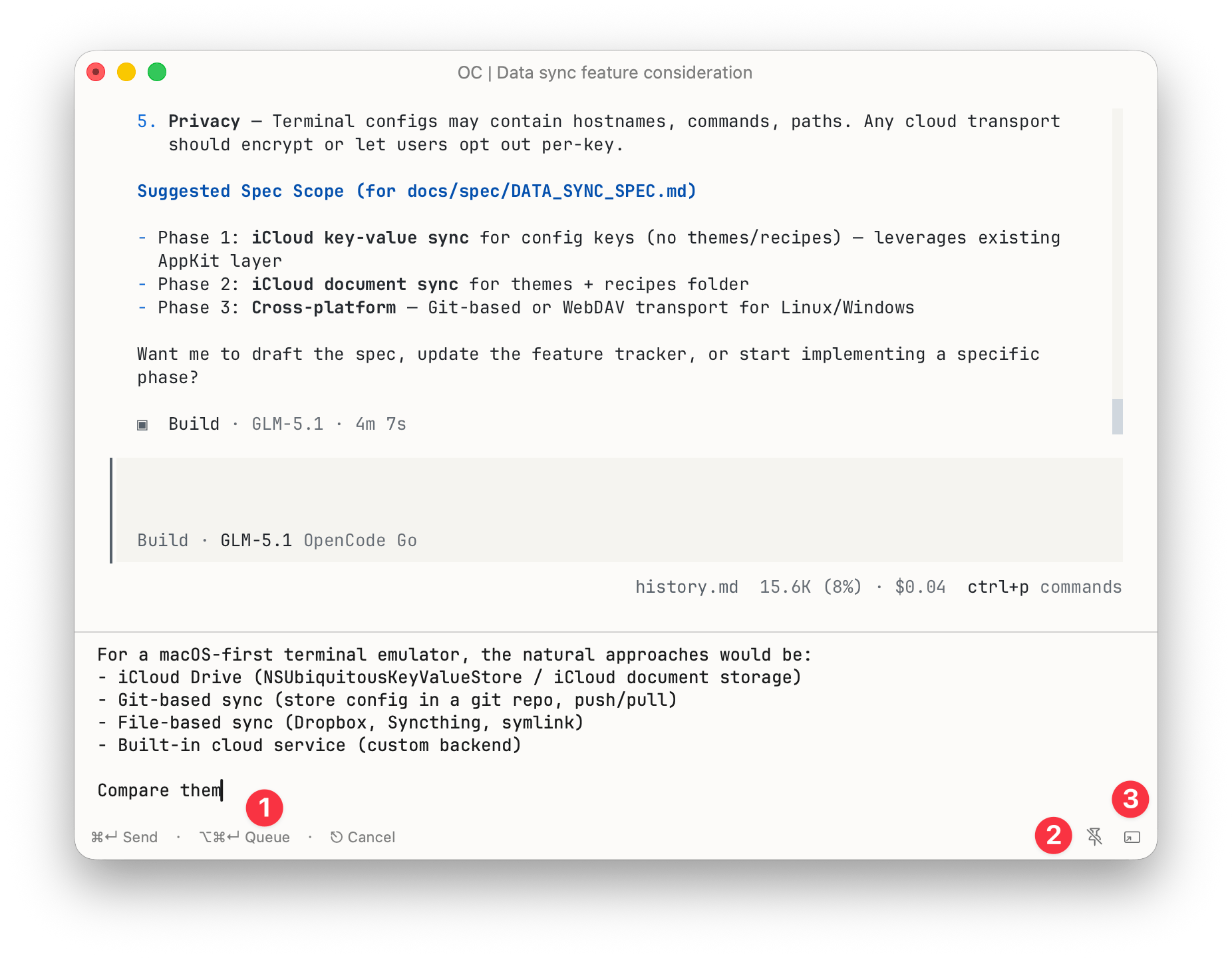
The composer lives in the same pane as its code agent, so by default it closes when you switch to a tab that doesn't hold that pane — your draft is stashed and restored when you come back. To keep it on screen across tab switches, click the pin button — (1) button in composer.png. Pinned, the composer rides along and stays visible no matter which tab is active; the state is remembered as a preference. Click it again to unpin.
Float Panel
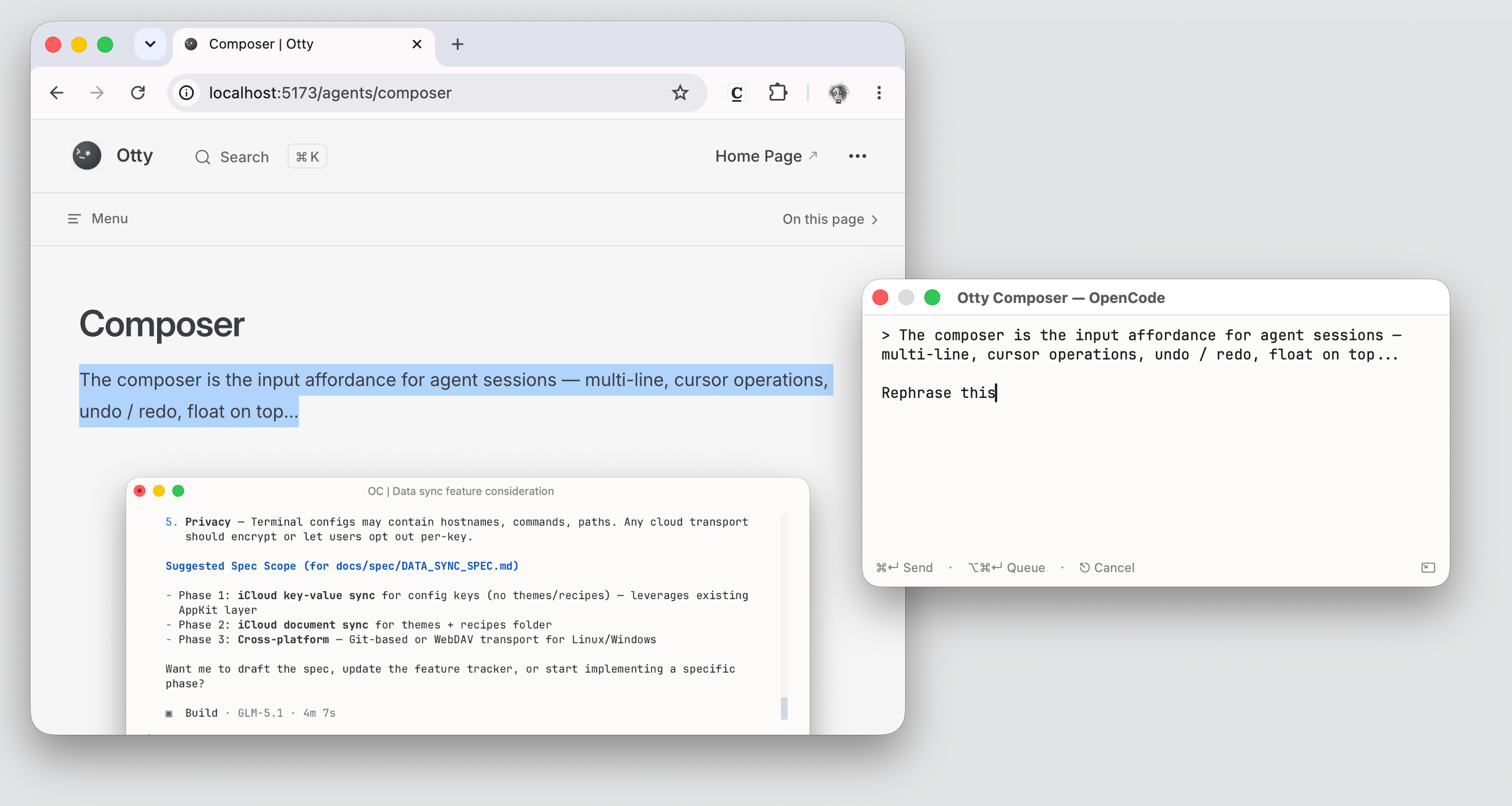
Click the pop-out button — (2) button in composer.png — to detach the composer into a floating, Spotlight-style panel. It stays on top of other windows without activating Otty or taking over the menu bar, so you can draft and append messages to the session alongside any other app or window you're working in. Your draft (text and inline attachments) moves with it; send or close to dock it back into the pane.
Add to Queue
Press ⌥⌘↩ — or click the queue button — (3) button in composer.png — to route the draft into the pane's Prompt Queue instead of sending it now. Each non-blank line becomes a separate queued command that auto-fires at the next idle prompt, so you can stack up several steps while the agent is still busy.
See Prompt Queue for reordering, editing, and draining the queue.