
Appearance
Using the CLI in your Shell
Practical recipes for the otty command. For the full reference of every subcommand and flag see Reference → CLI.
Install the CLI
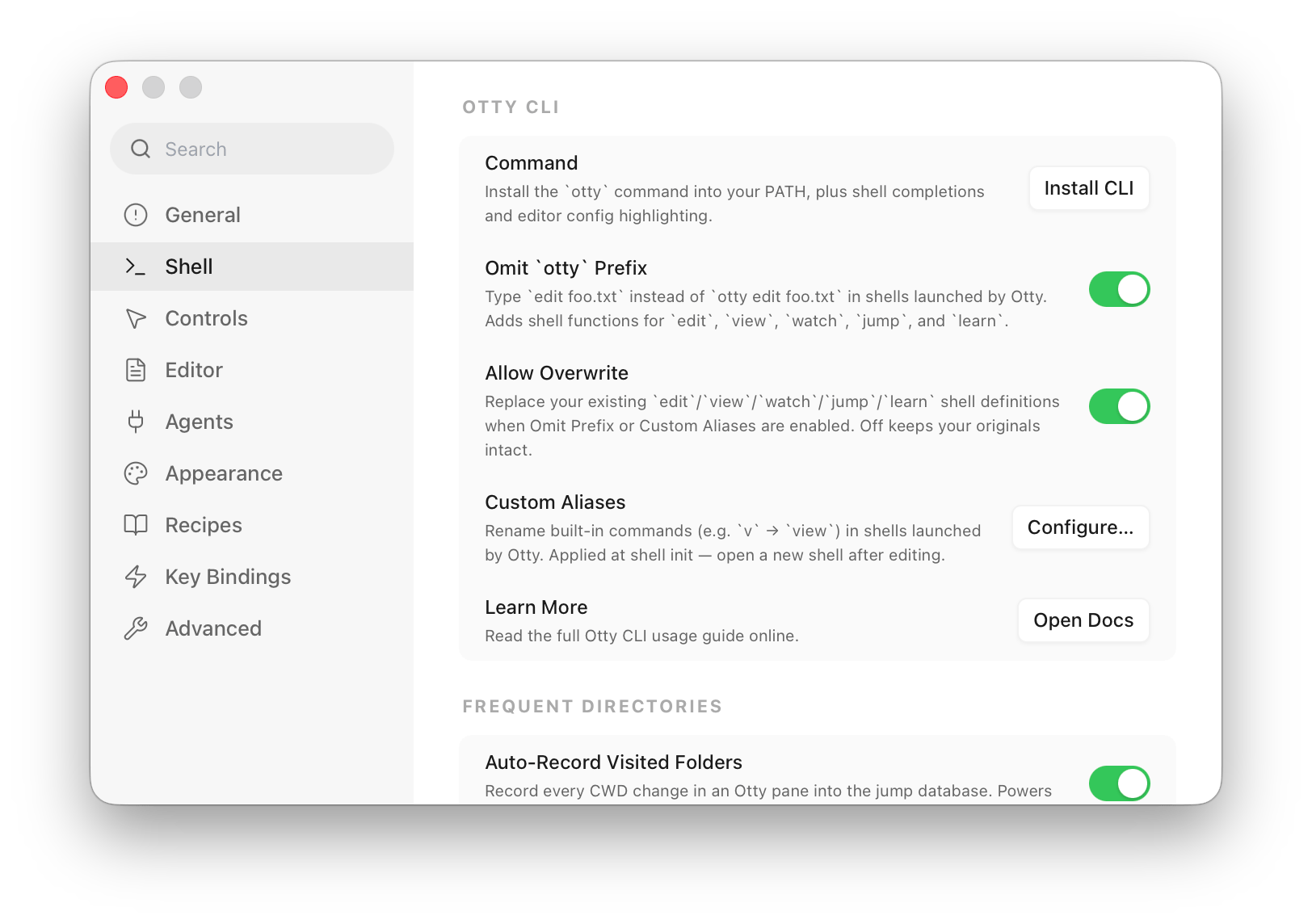
The otty CLI ships inside the app. To put it on your PATH, open Settings → Shell → Install CLI. One click:
- symlinks
ottyinto/usr/local/bin(asks for admin if needed), - installs shell completions for bash, zsh, and fish,
- installs config-file syntax highlighting for Vim/Neovim and
bat(only for the editors you already use).
Verify:
bash
otty --version
otty <TAB>          # completions
Basic Usage
otty open — pop a new window
bash
otty open                              # new window in the current directory
otty open ~/projects/api               # new window rooted at a folder
otty open . --command "npm run dev"    # run something on launch
otty open . --title "API"              # name the window
Starts the app if it isn't already running. The path defaults to your current directory; relative paths resolve against it.
otty view / otty edit — open a file or link in a pane
Needs a running Otty window. otty view opens read-only, otty edit opens the same target editable — otherwise identical.
bash
otty view ./README.md            # read-only preview, in a new tab
otty edit src/lib.rs             # editable
otty view https://doc.otty.sh    # http(s) links open as a web pane
otty view user@host:/etc/hosts   # remote paths, over your ssh session
Pick a placement (the default is a new tab):
bash
otty view log.txt --new-window
otty edit notes.md --right       # split the current pane: --left / --right / --top / --bottom
Flip the mode for a single call with --mode view|edit (e.g. edit something even when you typed view). Relative paths resolve against your shell's cwd. See Files and Links.
otty watch — run a command with a progress badge
Wraps any command so the tab shows a spinning badge while it runs, then a ✓ / ✗ badge when it finishes — glance at a long build from another tab without switching to it.
bash
otty watch cargo build --release
otty watch -- make test          # use `--` before commands that take their own flags
otty watch -q ./deploy.sh        # -q: no system notification on finish
The command's exit code passes straight through. Cancelling with Ctrl-C just clears the badge — a deliberate stop isn't flagged as an error.
Waiting on a coding agent
otty watch:claude <session-id> (also watch:codex, watch:opencode) blocks until that agent session goes idle, so you can chain work after it finishes. The session ID is the one from Agent History.
You could create a Skill in code agent to tell them do something after another code agent ended.
otty jump — frecency directory jump
Jumps the focused pane to the highest-ranked directory matching your query (cd-style). Ranking is by frecency — frequency + recency. Needs a running window. With shell integration on, your shell does the cd itself, just like zoxide — nothing is typed at the prompt, and your history shows the otty jump you ran.
bash
otty jump api    # jump to the best match for "api"
otty jump        # no query → toggle between $HOME and your last jump
Repeat the same query to cycle past your current directory to the next match (jump typora → jump typora lands you in a different Typora dir). It's most useful as a bare jump — see below. For the full picture — how folders get recorded and ranked — see Frequent Folders.
Manage the jump database directly with the jump: subcommands:
bash
otty jump:add                # record the current directory
otty jump:add ~/projects/api # …or a specific folder
otty jump:remove             # drop the current directory from the database
otty jump:view api           # show the folder "api" resolves to, and its score
otty jump:ls                 # list the top 100 folders by score
otty jump:ls 20              # …or just the top 20
otty jump:import             # pull in your zoxide history (= otty import zoxide)
jump:add is the same as otty learn <folder>. jump:remove deletes the entry outright — cd-ing back in re-records it; to black-list a folder for good use otty ignore instead.
otty learn — teach Otty a folder or command
otty learn feeds a different database depending on what you point it at:
1. A folder → the frecency database behind otty jump and Open Quickly's Folders tab.
bash
otty learn                 # record the current directory
otty learn ~/projects/api  # …or a specific folder
2. A command on your $PATH → Otty probes its --help and learns its flags and subcommands, adding them to autocomplete. For a bare $PATH name it confirms first; pass -y to skip.
bash
otty learn rg                        # a tool on $PATH
otty learn ./target/release/mytool   # …or an executable given by path
3. A script or command string → recorded as a suggestion scoped to the current folder, so it only surfaces in autocomplete where you actually run it.
bash
otty learn ./scripts/deploy.sh   # a project script
otty learn "make test-e2e"       # …or a quoted command string
otty ignore — undo otty learn
otty ignore is the mirror of otty learn — point it at the same thing to take it back:
bash
otty ignore ~/tmp/scratch    # a folder → drop it from jump results
otty ignore "make test-e2e" # a command/script → forget it for this folder- A folder (use 1) leaves the frecency rankings and won't come back when you
cdinto it; ifzoxideis installed it also runszoxide remove. - A command or script (use 3) is forgotten from the current folder's autocomplete — run
otty ignorefrom the same directory you learned it in, with the same text. This half is purely local; no running app needed.
The one thing it can't drop per-command is a tool's completions learned from --help (use 2) — clear those in Settings → Controls → Clear my data.
Already on zoxide? otty import zoxide pulls your existing history in — see Frequent Folders.
Drive a pane from a script or agent
These commands let a script — or an AI coding agent — send input into a pane and read results back, instead of a human typing. They're off by default: turn on Settings → Advanced → IPC Allow Send Keys first. For safety they're also refused on a pane that's in an SSH or sudo session unless you additionally enable IPC Allow Sensitive Sessions.
Target a pane with --pane: omit it to act on the active pane, use the $OTTY_PANE_ID a pane injects into its own environment, or list ids with otty pane list.
otty pane send-text — send input or a control key
Writes text into the pane exactly as if typed. It interprets C-style escapes, so control keys are just bytes — there's no key-name vocabulary to memorise:
bash
otty pane send-text --pane "$OTTY_PANE_ID" '\x03'            # a real Ctrl-C
otty pane send-text --pane "$OTTY_PANE_ID" 'git status\n'    # type it and submit (\n)
otty pane send-text --pane "$OTTY_PANE_ID" --from-file deploy.sh   # verbatim, no quoting hell
Nothing is appended automatically — include a trailing \n to run what you sent. --from-file (and --stdin) send the bytes untouched, which sidesteps shell quoting entirely.
otty pane run — run a command, get success/failure
Submits a command, blocks until it finishes, and reports its process state (succeed / error) — not its output. It exits with the command's own exit code, so it composes like any normal command:
bash
otty pane run --pane "$OTTY_PANE_ID" -- npm test && echo "green"

otty pane run --pane "$OTTY_PANE_ID" --format json -- ./deploy.sh
# → { "state": "succeed", "exit_code": 0, "command": "./deploy.sh", "duration_ms": 1234 }
This replaces the old dance of redirecting output to a logfile and polling it — run tells you when the command finished and whether it worked. Because it never buffers the output, it's immune to output size, scrollback limits, and pagers. When you need the actual text, use exec below. It needs Shell Integration (OSC 133) active in the pane, and the pane must be idle at a prompt.
otty pane wait — wait for work already running
run starts a command and waits for it. pane wait waits for work that is already running — something you started by hand, or an agent that is mid-task:
bash
otty pane wait                                   # the pane you're in
otty pane wait --pane p_19f0bfe5ce9_1a
otty pane wait --tab t_19f0bfe5ce9_1a            # every split in that tab
otty pane wait --window w_6FCAD7FA --timeout-secs 300
It exits 0 as soon as the pane is idle. For a pane running a coding agent, idle is what the agent reports — an agent owns its terminal for its whole life, so "back at a shell prompt" never happens there. For an ordinary shell pane it means no command is running, which needs Shell Integration (OSC 133). A pane that can report neither exits 6 and says so; a timeout exits 9 naming the panes still busy.
Unlike run, wait never types anything into the pane.
otty pane exec — capture stdout and stderr separately
Like run, but hands back the two streams apart:
bash
otty pane exec --pane "$OTTY_PANE_ID" --format json -- cargo build
# → { "exit_code": 0, "stdout": "…", "stderr": "…", "stderr_is_tty": false, … }
Otty separates them by redirecting stderr before it merges onto the terminal. The tradeoff: stderr is no longer a tty for that command, so a program may drop colours or progress bars on it (stderr_is_tty is always false). Reach for run when you only need pass/fail and don't need the output text.
Acting vs. watching
Use run / exec to act on a command's result; use otty pane capture to watch what's on screen. Capture returns a snapshot of the rendered grid, so output that scrolled through a pager or bat comes back looking as it does on screen, not as clean text.
Deep-link to a window, tab, or pane
otty:// URLs jump Otty to a specific target — handy for bookmarks, scripts, or a link you print into the terminal. The selector after the kind is the same one --pane / --tab / --window accept:
bash
open otty://pane/$OTTY_PANE_ID     # focus the pane this shell is running in
open otty://window/current         # bring Otty's active window forward
open otty://tab/t_19f6a… # jump to a tab by idotty://window/<sel>—w_<id>, orcurrent/last/ an index /title:<pattern>.otty://tab/<sel>—t_<id>or a 1-based index.otty://pane/<sel>—p_<id>or a session id (e.g.$OTTY_PANE_ID).
Get the ids from otty pane list. The links work from anywhere — open otty://… routes to Otty via the system — and as clickable links inside a pane; Otty navigates without a confirmation prompt, since the link only moves focus. See the URL Scheme reference for every selector form.
Omit the otty prefix and set aliases
Typing otty before every command gets old. Turn on Settings → Shell → Omit otty prefix and the integration installs shell functions for edit, view, watch, jump, and learn, so you can just type:
bash
jump api
edit src/lib.rs
watch cargo test
The toggle is live — it takes effect at the next prompt in every integrated shell, no restart. By default these wrappers won't clobber a name you've already defined (e.g. Linux's system watch); turn on Allow overwrite to let them win. The jump wrapper additionally cds your shell locally instead of echoing cd '<path>' into the pane, so your history and transcript stay clean.
Custom aliases
Map a short name to any otty subcommand under Settings → Shell → CLI aliases, or in ~/.config/otty/config.toml:
ini
cli-alias = j=jump
cli-alias = v=view
cli-alias = e=edit
Now j api runs otty jump api. An alias that points at a wrapped command (jump / edit / view / watch / learn) goes through that wrapper, so j keeps the clean local-cd behaviour. Custom aliases apply at shell init — open a new shell after changing them.
Run a recipe
bash
otty recipe list                         # saved recipes in the running app
otty recipe apply "Dev workspace" --cwd ~/work/project
otty open ~/work/team.ottyrecipe          # an exported recipe file
Run saved recipes from a shell, Raycast, or a coding agent. Use otty recipe list --json for a machine-readable list, then apply a recipe by ID or name. See Recipes for destinations and command replay behavior.
See also
- CLI Reference — every subcommand and flag.
- Configuration Reference —
default-shell,working-directory, etc.