
Appearance
Details Panel
The Details Panel is a right-side panel that gives you context about the focused pane without leaving the terminal — its working directory, what's running, git status, an outline of the content, and a file tree. It always reflects the focused pane, updating as you switch panes or tabs.
Opening it
- Press
⌘⇧R, or use View → Toggle Details Panel. - Hover the window title and click the Toggle Details Panel button in the title bar.
The panel docks on the right, mirroring the tabs panel on the left.
The panel ships with four tabs, each bound to the focused pane. Switch between them by clicking, pick one from the View menu or the command palette — both list every view the panel has, built-in and your own — or jump straight to a built-in with the Details: Info / Outline / Git / Files commands (bindable under Keybindings; unbound by default). You can reorder them, switch any of them off, and add tabs of your own — see Choosing which tabs appear and Custom Views. When the panel is too narrow to fit the strip, the tabs collapse into a dropdown.
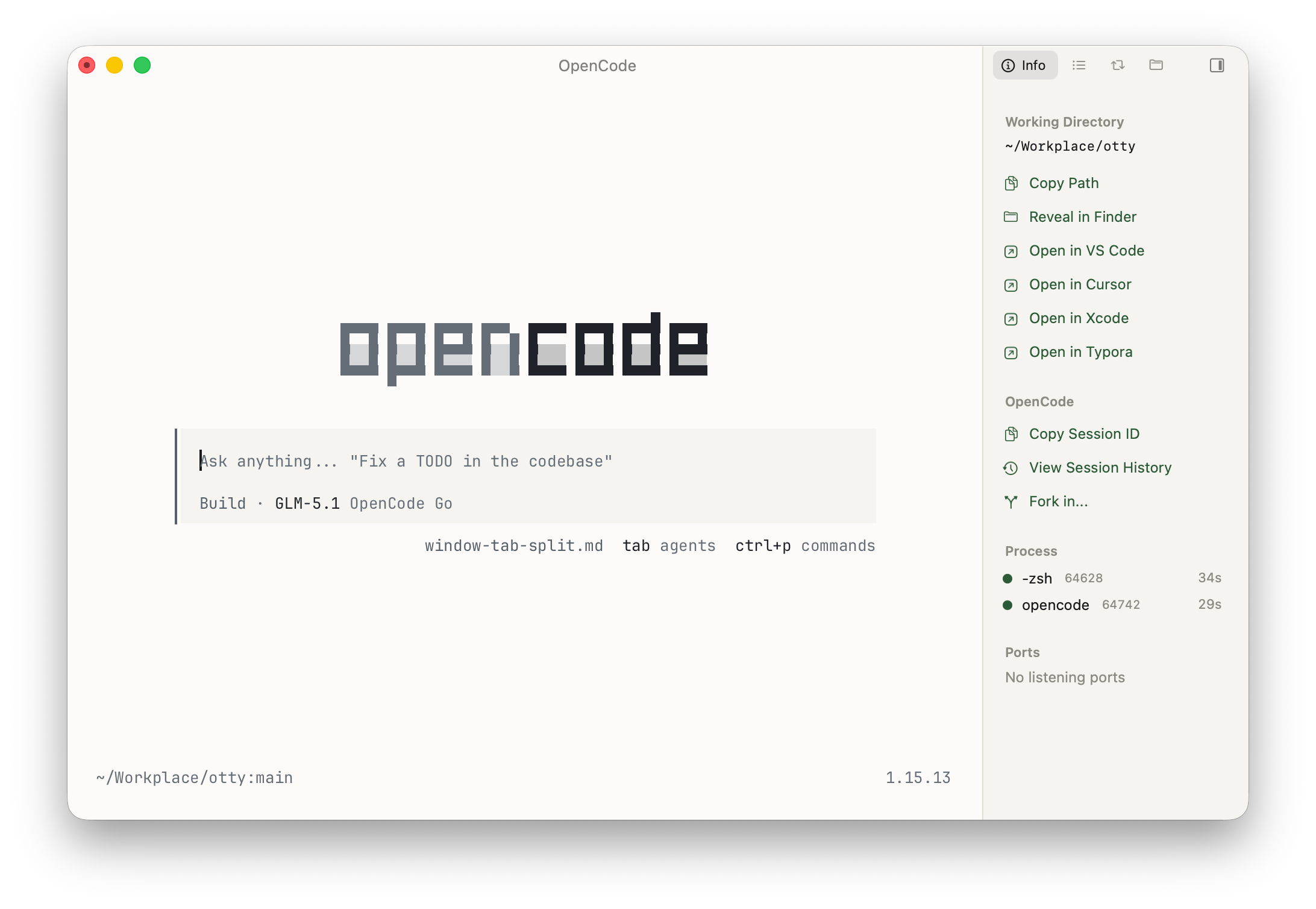
Info
The pane's working directory, the running process list, any listening ports, and quick open-in actions.
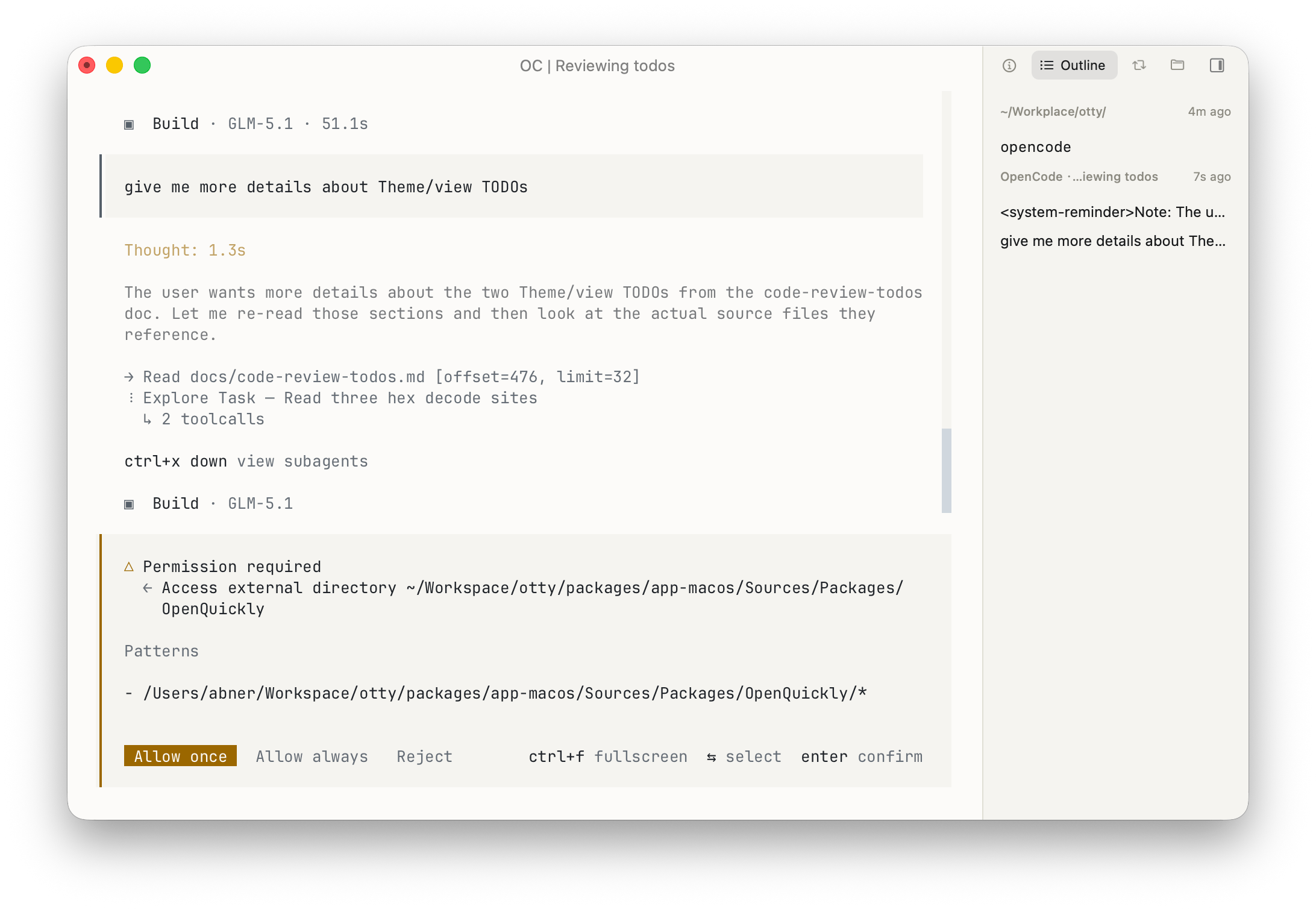
Outline
A structural map of the pane. A terminal or agent pane lists its command marks and agent prompts; a file pane shows a table of contents (Markdown / HTML), the changed-file list (a diff), top-level keys (JSON / YAML / TOML), or transcript prompts (.jsonl).
Git
A summary of the pane's git repo with a toolbar, the list of changed files with hover actions, and an inline diff viewer.
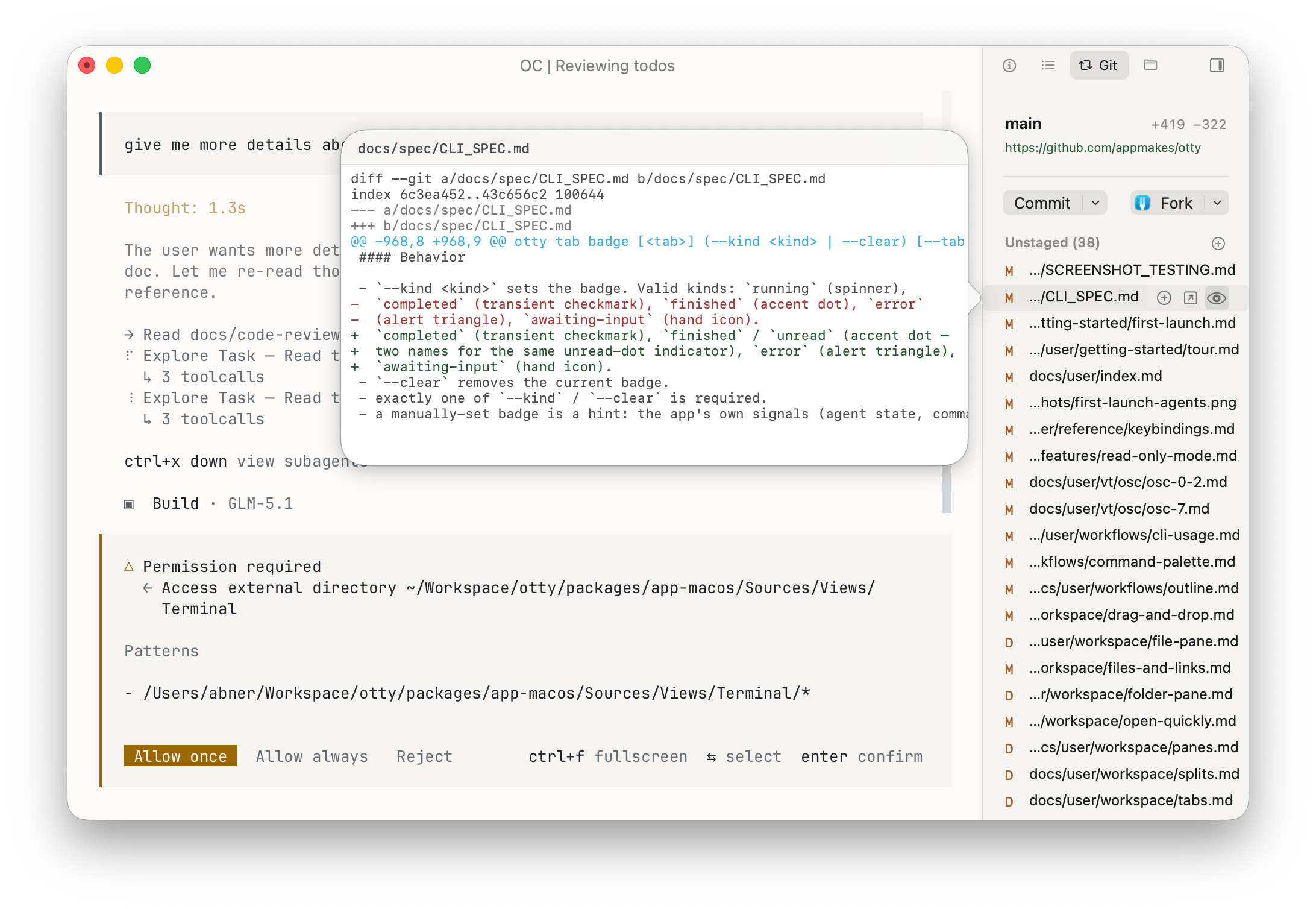
You can config default Git client from Settings → Controls → Open With.
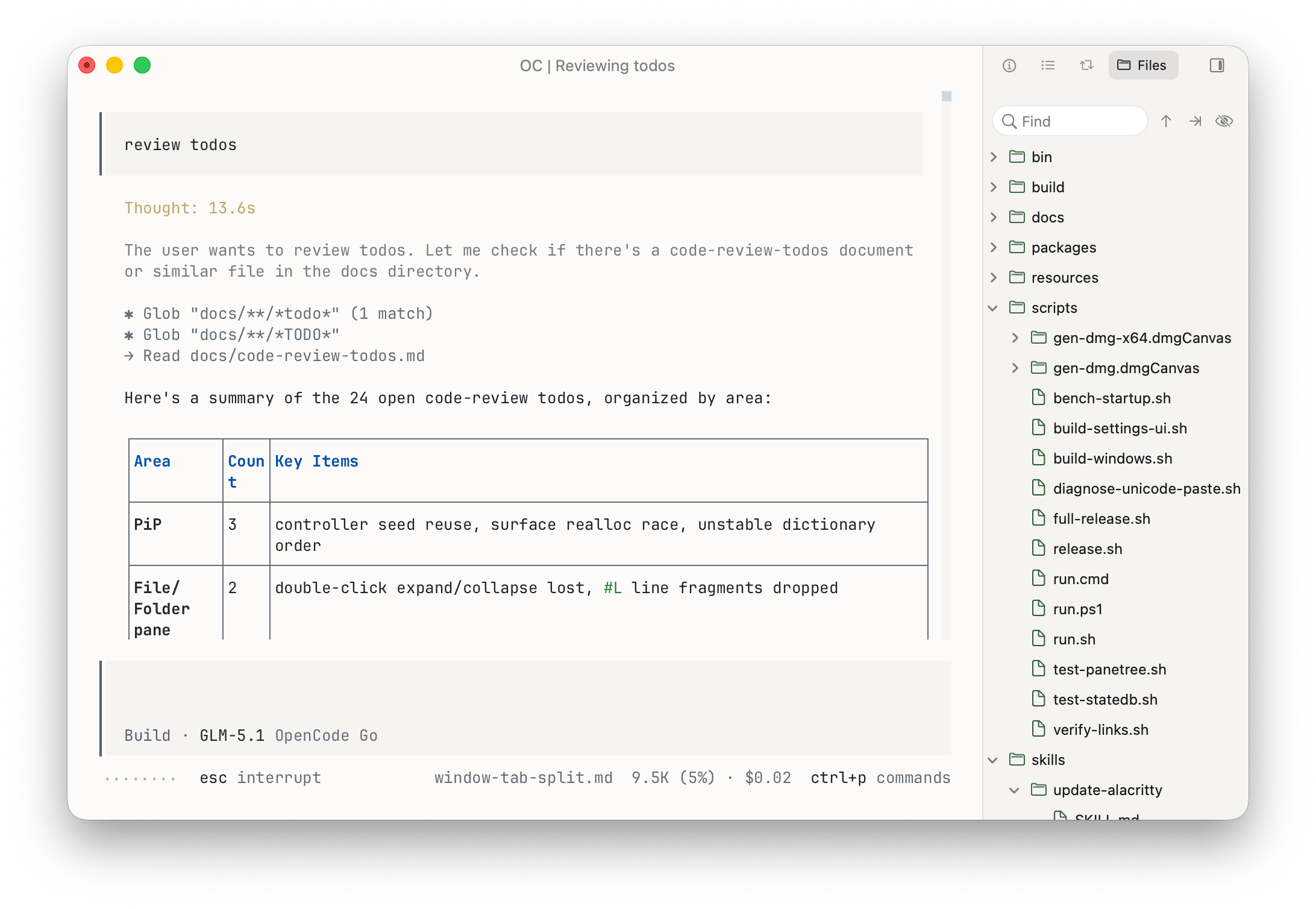
Files
A file tree rooted at the focused pane's working directory — a quick browser without opening a folder pane.
Choosing which tabs appear
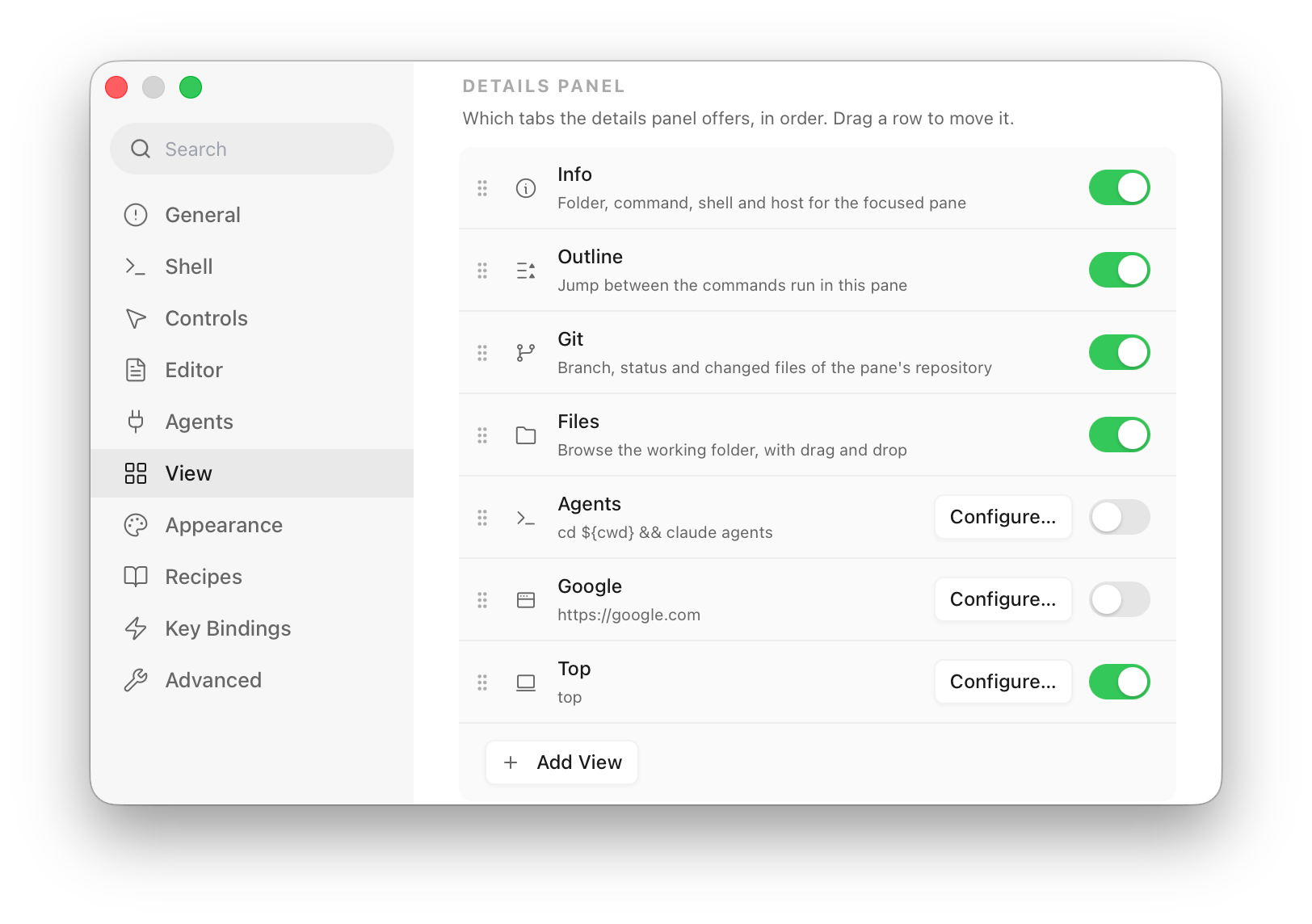
Open Settings → View → Details Panel. Every tab is a row you can switch off, and dragging a row moves it in the strip — the order here is the order the tabs appear in.
Switching a view off takes it out of the tab strip, not out of reach: it stays in the View menu and the command palette, and picking it there shows it and gives it a tab back for as long as it's the one you're looking at.
Custom Views
The four built-in tabs answer questions about the focused pane. Add View puts something of your own next to them — a tool you want on hand without giving it a pane, or a page you keep reaching for.
Two kinds:
- Terminal Program — a command running in a terminal inside the panel:
lazydocker,htop,btm,k9s. - Web Page — a URL: a local dev server, a dashboard, a doc site.
Give it a Name, pick an Icon (the same set the tab rules use, in a lighter weight for the panel), and fill in the one field its kind needs.
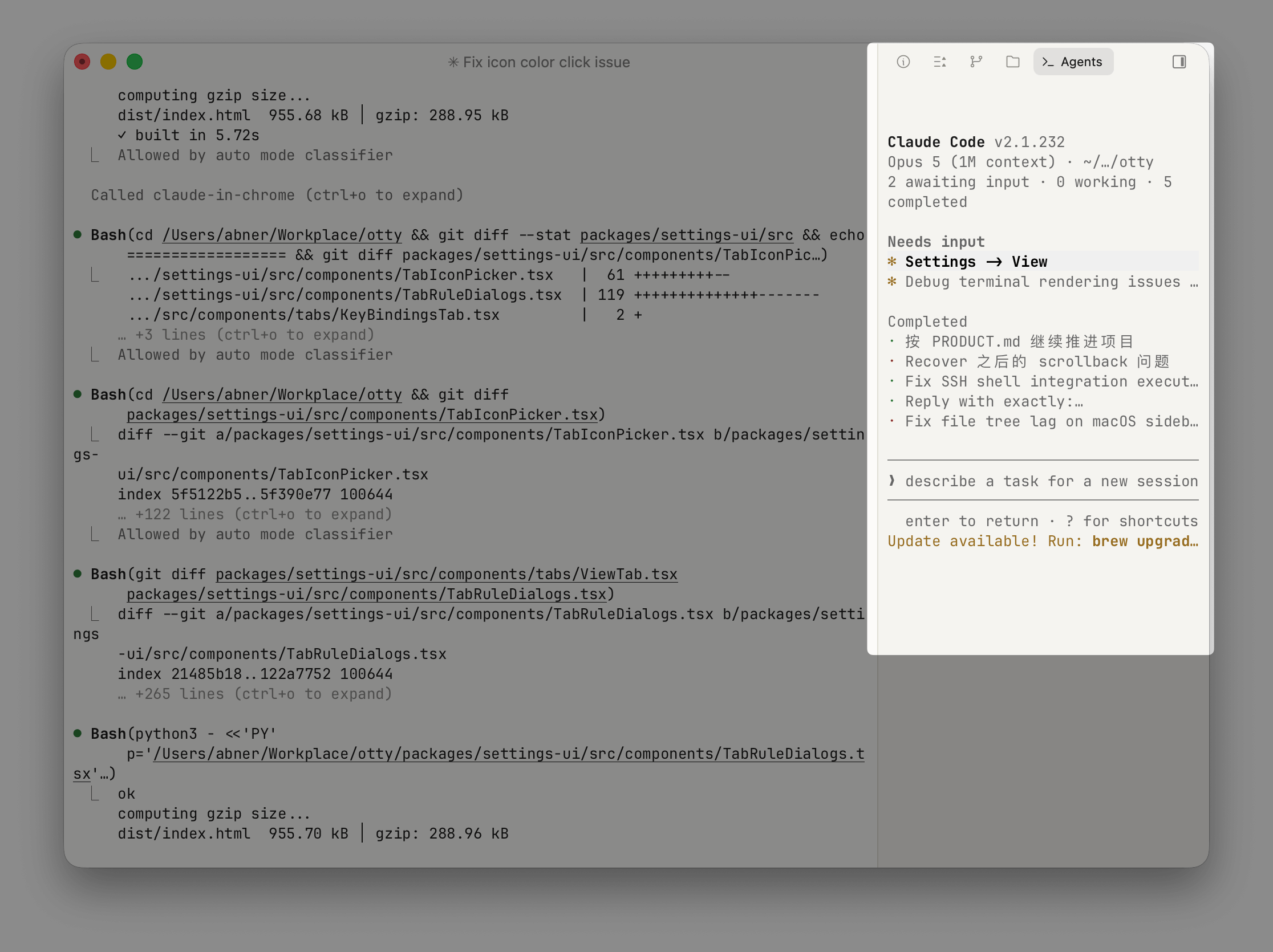
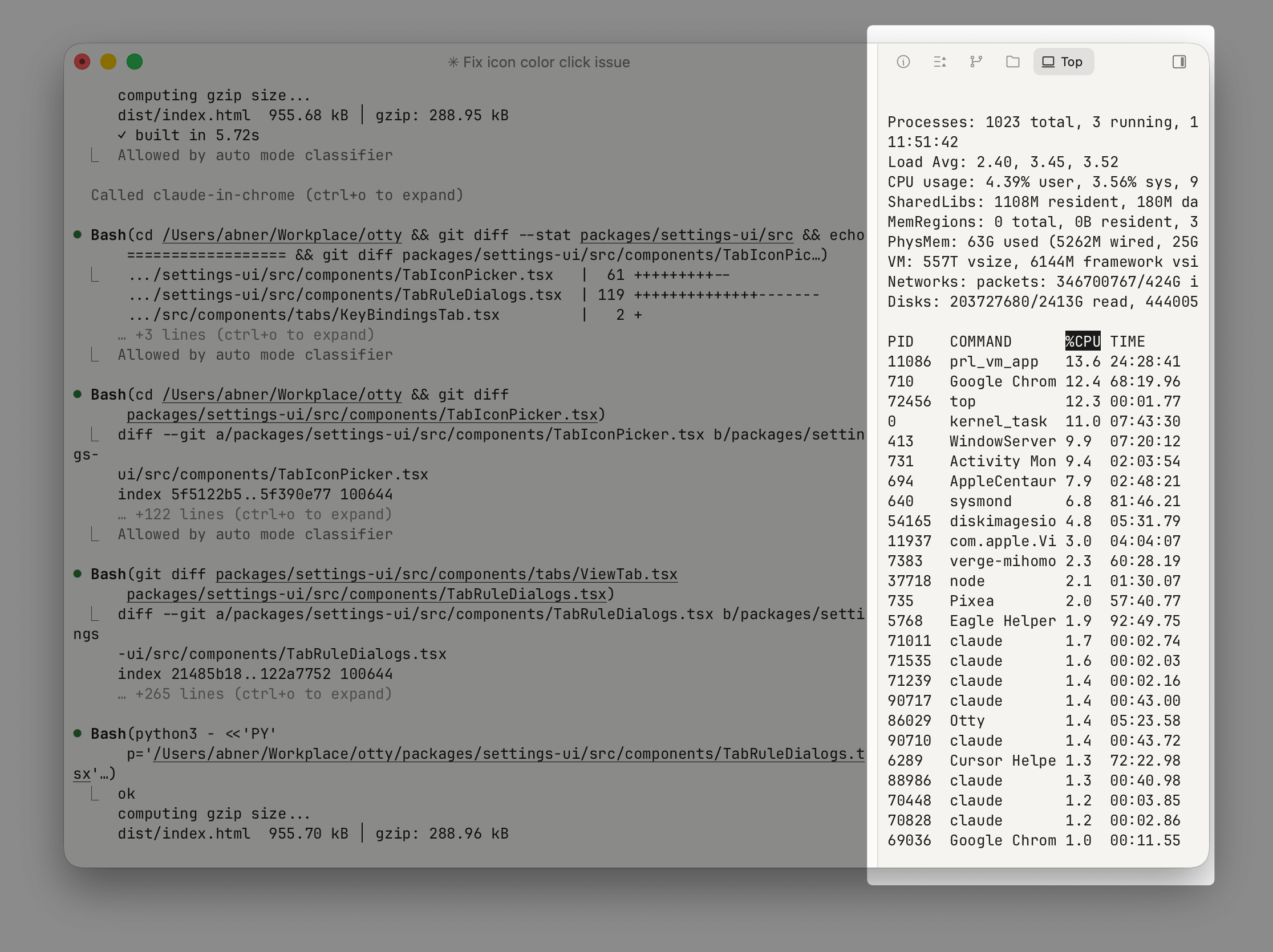
The command is a command line
Not a program plus arguments — the whole line, run the way a prompt would run it. Pipes, &&, ; and redirections all work:
watch -n5 'git -C ~/Work/otty log --oneline -10'By default it runs in its own folder under ~/.config/otty/views/<name>, so a tool that writes state next to itself has somewhere to keep it. Set Folder to pin it elsewhere.
The line runs through your own shell, started the way a pane starts it — so it finds whatever your shell profile puts on PATH, and claude, lazygit or anything you installed through Homebrew or npm works here exactly as it does at a prompt.
Following the focused pane
A command can interpolate the focused pane. Click a pill under the field to insert one:
${cwd} ${folder} | the pane's working directory, and its last component |
${pid} ${command} | the pane's process id, and what's running in it |
${branch} | the current git branch |
${file} | the file a file pane has open |
${host} ${user} ${agent} ${shell} | who and what the pane is talking to |
So lazygit -p "${cwd}" follows you around. Substitution is textual, so quote a value that might contain spaces — as in that example.
A variable with nothing in it expands to nothing. Chain names with | when that's not good enough and the first one with a value wins — ${file|cwd} points at the open file, or the pane's directory when there isn't one.
Folder takes the same variables. Setting it to ${cwd} runs the program wherever the focused pane is, which is what a tool that has no "point me at a directory" flag needs.
One program, shared
Two terminal views that resolve to the same command and folder are the same running program, shared across every window: opening the panel in a second window attaches to it rather than starting another copy.
Read the other way, that is why a ${cwd} view gets one program per directory — and why moving focus to a pane in a different folder swaps the program over. Closing the panel doesn't stop them; deleting the view does. Otty keeps at most six panel programs alive and retires the least recently used.
A web page arrives as its phone version
A Web Page view loads with Mobile Page on: the site is asked the way a phone browser asks, so it serves the layout it wrote for a narrow column — which is what the panel is. Turn it off for a page whose desktop version is the one you want. Either way the page is laid out at the panel's own width, so widening the panel gives the page more room instead of magnifying it.
Opening a file or page in the view
otty view <file> and otty edit <file> work from inside a view, and they load into that view rather than making a pane for it:
otty view CHANGELOG.md      # over the program, with a strip to dismiss it
otty view https://localhost:3000
That is what makes a view worth scripting: a tool can hand you the thing it found without taking over your window. The program keeps running underneath; close the strip and you are back in it. Because the program is shared, the target appears in every window showing that view.
What a view may not do
A view is a widget in a narrow column, so the program in it may not make Otty windows, tabs or panes, and may not hand a file to a GUI app — otty tab new, otty pane split and open all refuse. Run those from a terminal pane instead.
This is a guardrail against a tool that helpfully opens a window, not a sandbox: a program that goes straight to the system APIs isn't stopped. Anything routed through Otty itself is refused by pane identity, which the program can't opt out of by clearing OTTY_NO_NEW_PANE.
Editing one later
Its row in Settings → View → Details Panel grows a Configure… button. The same dialog also deletes it, which is the only thing that stops a terminal view's program for good.
Views are stored as details-view lines in config.toml if you would rather edit them there — see Configuration.
See also
- Outline — jumping through commands and document structure.
- Files and Links — opening paths the panel surfaces.
- Window, Tab and Split — the panel lives in the window chrome.