
Appearance
Search in Files
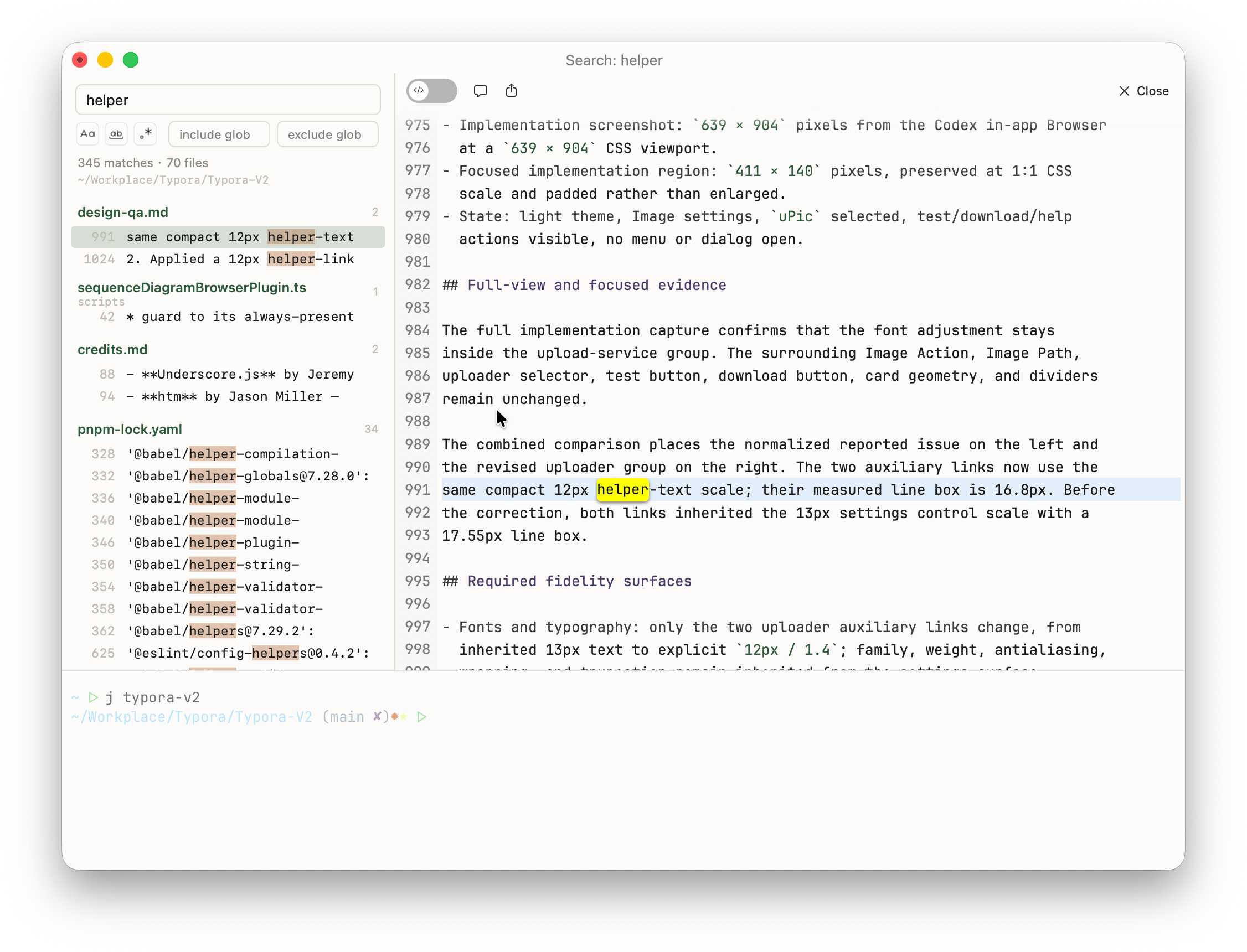
Grep the contents of every file under a folder, in a tab of its own. Results on the left, the matching file on the right.
This is the file-content counterpart to Find, which searches what the terminal printed, and to Open Quickly's Files filter, which searches file names.
Open it
There is no default shortcut, but there are three ways in — one that starts empty, and two that hand over a query you have already typed:
| From | How |
|---|---|
| View menu / Command Palette | Search Across Files — opens on the focused pane's folder with an empty query, and the field takes the focus. Bindable as search_in_files. |
Open Quickly (⌘⇧O → ⌘P) | The last row of the Files group: Search “…” in file contents. Use it when the filename didn't match. |
Find in All Tabs (⇧⌘F) | The Search Files button, beside Search in Current Tab. |
Either way you get an ordinary tab — it lands wherever your New Tab Position setting says, and behaves like any other: split it, drag it to another window, close it. Closing also stops the search.
The folder it searches
The focused pane's working directory, captured when the tab opens. It does not follow that pane afterwards: cd somewhere else and the search tab keeps covering the folder it started with, so its results stay reproducible. The folder is shown next to the match count.
Otty ships its own copy of ripgrep, so .gitignore rules, hidden files and binaries are handled the way rg handles them — build output doesn't show up, and nothing needs installing first.
Two columns, or one
Wide enough (about 700pt of pane), and it splits: results on the left, the selected file on the right. ↑ / ↓ walk the matches and the right column follows, so you can read hits in context without opening anything — click a row to jump the preview there.
The right column is a normal file pane — same toolbar, same syntax highlighting — opened read-only. Flip the lock in the toolbar to edit and save in place. Double-click a result to open the file properly, per your file-open-with setting.
Narrower than that — a slim split, say — there's no room for a preview, so you get just the list, and clicking a result opens the file and jumps to the line: the same thing ↩ does in Open Quickly ▸ Files.
Narrowing the search
| Control | Effect |
|---|---|
Aa | Case sensitive. |
ab | Whole word only. |
.* | Treat the query as a regular expression (Rust regex syntax). Off means a literal search. |
| include | Only these files, e.g. *.swift or src/**. Space-separates several patterns. |
| exclude | Skip these, e.g. *.lock. A leading ! is added for you. |
Press ↩ in any of the fields to re-run.
Limits
Very large result sets are cut off rather than collected forever: the search stops at 5000 matches and the list renders the first 800 rows. Both say so where the count is — a truncated search never looks like a complete one.
Search results aren't restored when Otty restarts. They belong to a process that's gone by then, and a tab that came back empty would be worse than no tab.
See also
- Find — search inside a pane's scrollback, and across all tabs.
- Open Quickly — jump to tabs, folders, sessions and file names.