
Appearance
Read-only Mode
Locks a pane so nothing you type reaches the shell. Useful when a long-running process is producing important output and you don't want a stray keystroke to interrupt it — or when you hand the window to someone else for a quick look.
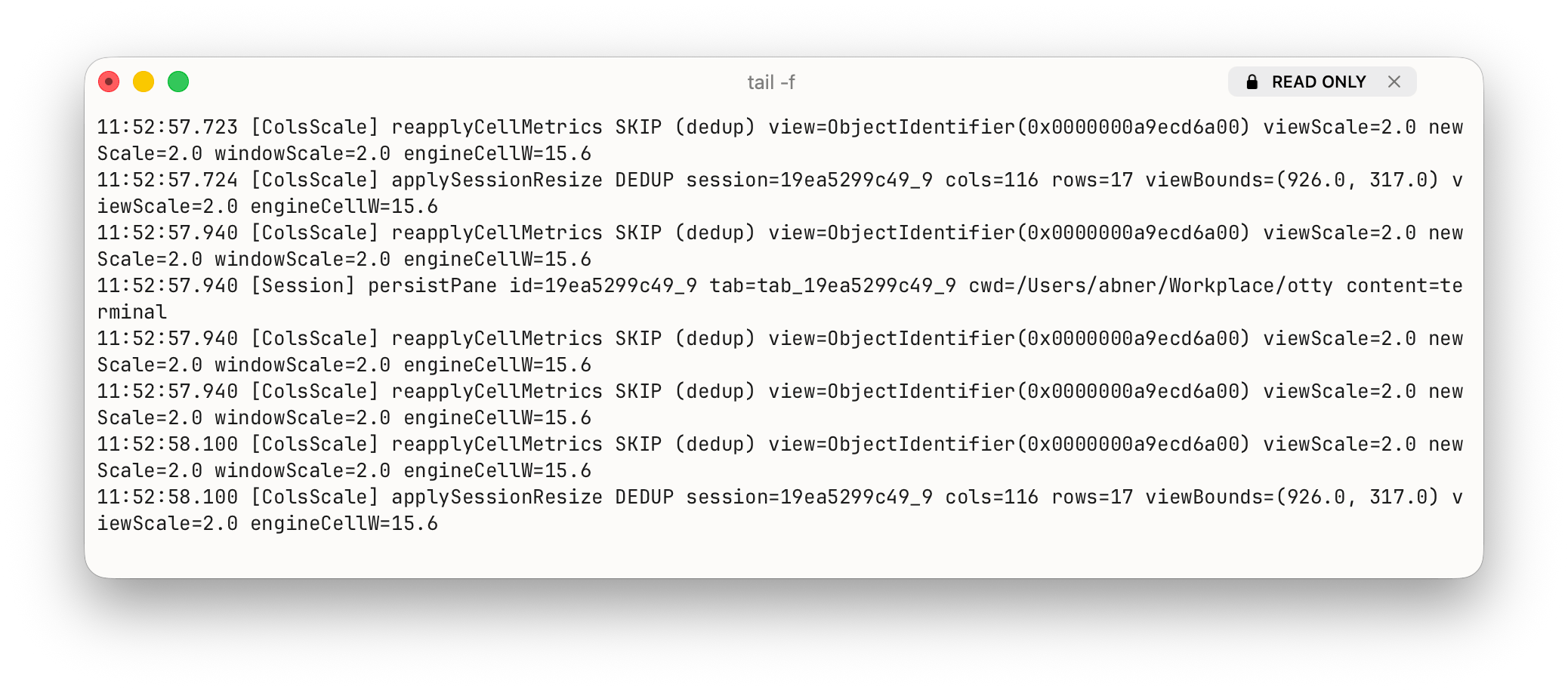
Toggling
| Where | How |
|---|---|
| Menu bar | Shell → Read Only |
| Command palette | Type "read only" (also readonly, lock, freeze, view only) |
| Titlebar pill | Click the × on the READ ONLY pill to disable |
The toggle is per-pane. Splitting or opening a new tab gives you a fresh editable pane.
What gets blocked
Every user-input path runs through the same gate:
- Keyboard input (incl. IME commit)
- Paste (
⌘V, middle-click, drag-drop text) - Click-to-move (the cursor-position write some shells do)
- Mouse reporting (for TUIs that consume mouse events)
- Drag-and-drop of files / paths into the pane
When an input is rejected the pane beeps once. Output from the running process is unaffected — text keeps streaming, scrollback keeps growing, you can still scroll, select, copy, and search.
Interaction with other modes
- Vi Mode and Hint Mode temporarily hide the READ ONLY pill while they're active (their own keybindings drive selection / hinting, not the shell — so the lock isn't needed). The lock stays on; the pill reappears when you exit vi / hint mode.
- Sudo / Secure Input pills are hidden while read-only is on, since none of those input paths can fire.
File panes
Read Only works on the focused file pane too — useful when you opened a file just to look. There's no titlebar pill; the pane simply switches to its read-only representation:
- A text / code pane locks editing.
- A Markdown / SVG / HTML pane switches to its rendered Preview.
How to toggle:
- Menu bar — Shell → Read Only (applies to whichever pane is focused).
- Command palette — pick Read Only / Edit Mode (also
readonly,lock,view only/edit,editable,unlock). - Workspace command palette — under View Mode, pick Make Read-Only / Make Editable.
- The same keybinding you set for Read Only applies to whichever pane is focused.
While a text pane is read-only, ⌘S / ⌘⇧S are disabled (attempting one beeps), and the info panel Status row reads "Read-only" instead of "Saved" / "Unsaved changes".
Files opened in preview mode (PDF, images, diffs) are always read-only by nature and don't expose the toggle.
See also
- Vi Mode — navigate the locked pane with the keyboard.
- Hint Mode — click links and copy paths without unlocking.
- Privilege and Notifications — sudo / secure input pills that also live in the titlebar.